
Get started with Ex Parte
The Ex Parte portal connects patent litigation records, patents, people, and firms with tools for reading and checking the underlying evidence. Use it to find a matter, follow a ruling into its filings, explore a litigation record, or work through a patent research question.
This guide covers the browser portal. Features and controls vary by your plan, role, and the records available for the matter. Report generation, expert search, and chargeable court-document retrieval described here are portal workflows. The MCP connector guide explains the separate experience in Claude: document purchases and automatic PACER updates are disabled, and it retrieves existing reports rather than generating new ones.
Learn the navigation
- Dashboard: the grid icon returns to recently viewed work.
- Search: the magnifier opens the search page. Use ⌘ + K for quick search.
- Saved items: the bookmark icon opens the cases, patents, and profiles you have saved.
- Profile: your account menu contains account settings and sign-out controls.
- Theme and layout: the sun or moon changes the theme; the menu control expands or collapses navigation. A larger display is useful for reading a report beside its source.
Case, patent, and profile pages put the item's identity and bookmark control in the header. Check that identity before exploring its tabs, related records, or documents.
Your first three tasks
- Find a known case by its number or caption, and confirm its forum and parties.
- Open an available report on Analysis. Hover a citation, expand its preview, and read the source passage.
- Bookmark the case, then find it under Saved items.
Screenshots in this guide are saved product examples. Names, dates, counts, ratings, and available controls reflect those examples; they are not current research results. Some illustrated controls require particular permissions. Select a screenshot to open it at full size.
Return to recent work
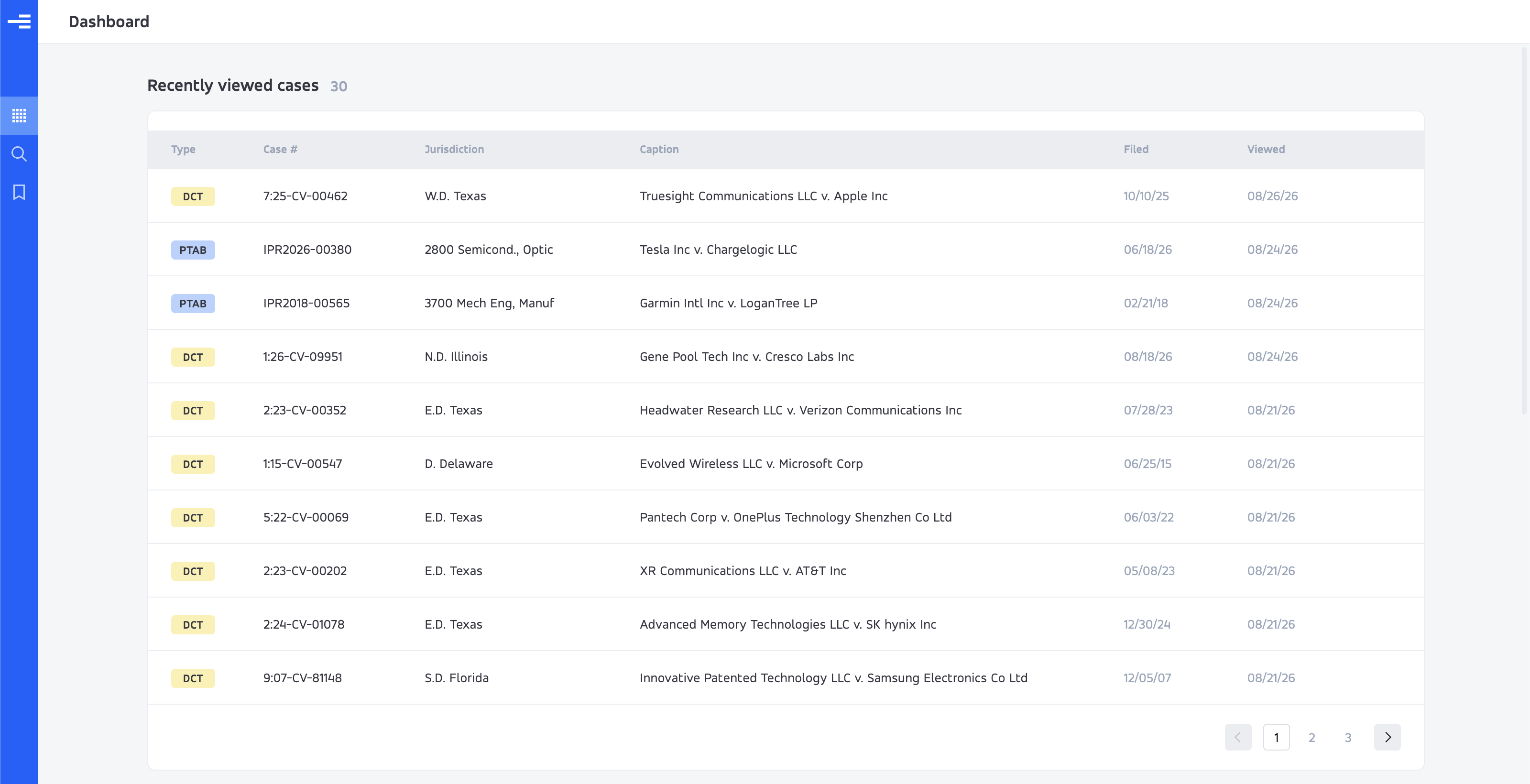
The dashboard's Recently viewed cases table helps you resume a matter you opened earlier. Rows show the forum, case number, jurisdiction, caption, filing date, and viewing date. Select a row to return to the case.
Recently viewed work is browsing history. Saved items is the collection you deliberately maintain with bookmarks. Save a matter you expect to revisit rather than relying on it staying near the top of the dashboard.
If your dashboard shows plan information instead of case history, check the access available to your account. An empty or restricted dashboard does not establish that a case is absent from Ex Parte.
Find a record or build a search
Quick search is the shortest route to a known record. The full search page is useful when the question depends on several filters, such as a court, judge, date range, party, or type of ruling.
Quick search
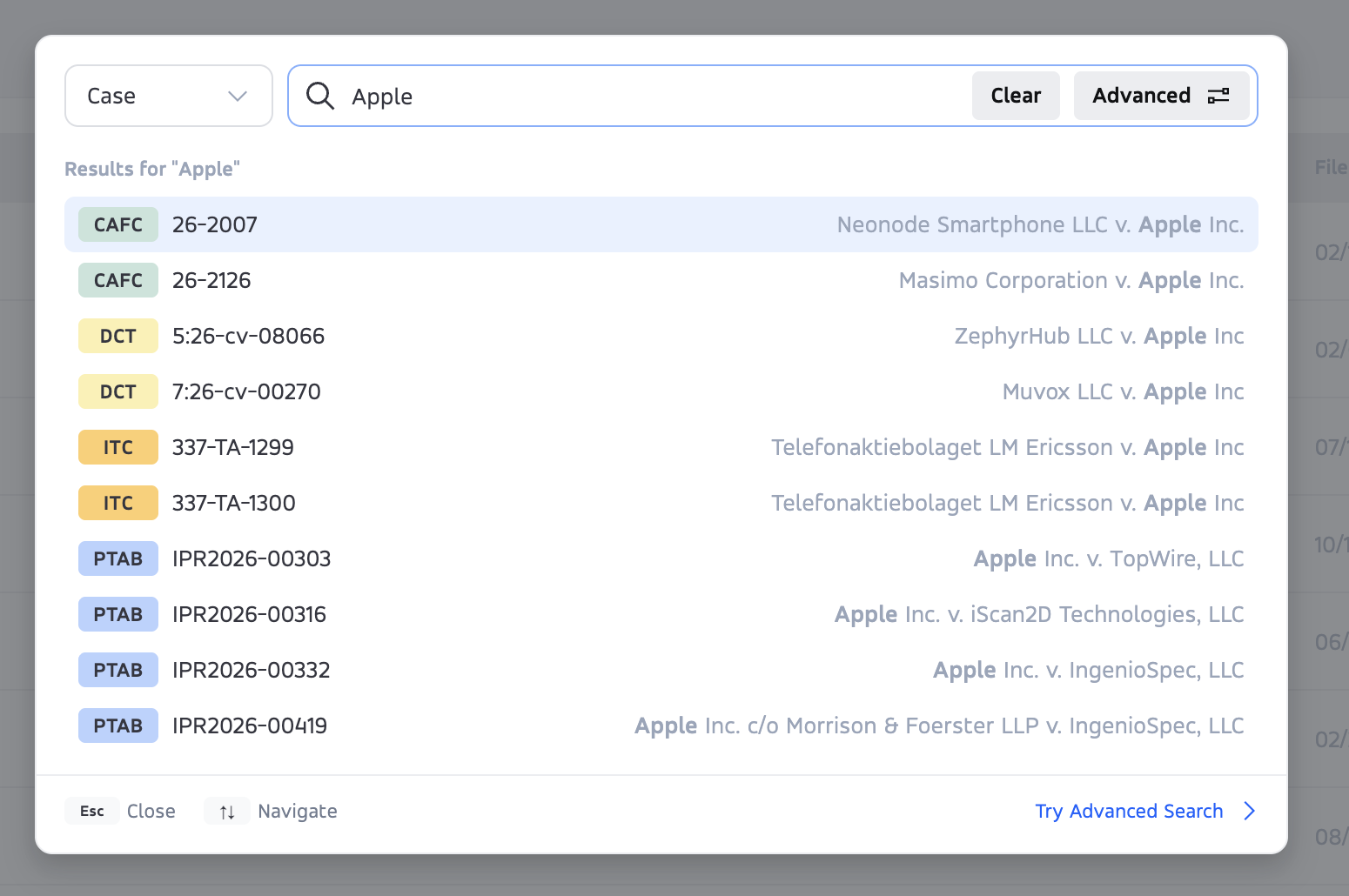
- Press ⌘ + K, then select the record type: case, patent, attorney, party, law firm, or judge.
- Enter at least three characters. Cases and patents can match identifiers as well as names; entity searches use names.
- Check the results' identities. Use the arrow keys to select a result and Enter to open it; Escape closes the window.
- If the result is missing, try a more specific name or identifier. The empty state may offer the same query under a different record type.
Changing the record type clears the query, with a Restore option for the previous text. The recent-items list follows the selected type. A broad term may return only a limited set of suggestions, so absence from that list is not proof that the record is unavailable.
Use the search page
Open the magnifier in the navigation rail. Depending on access, you will see simple search or advanced filters. Tabs select the record type; expert-search availability is described below.
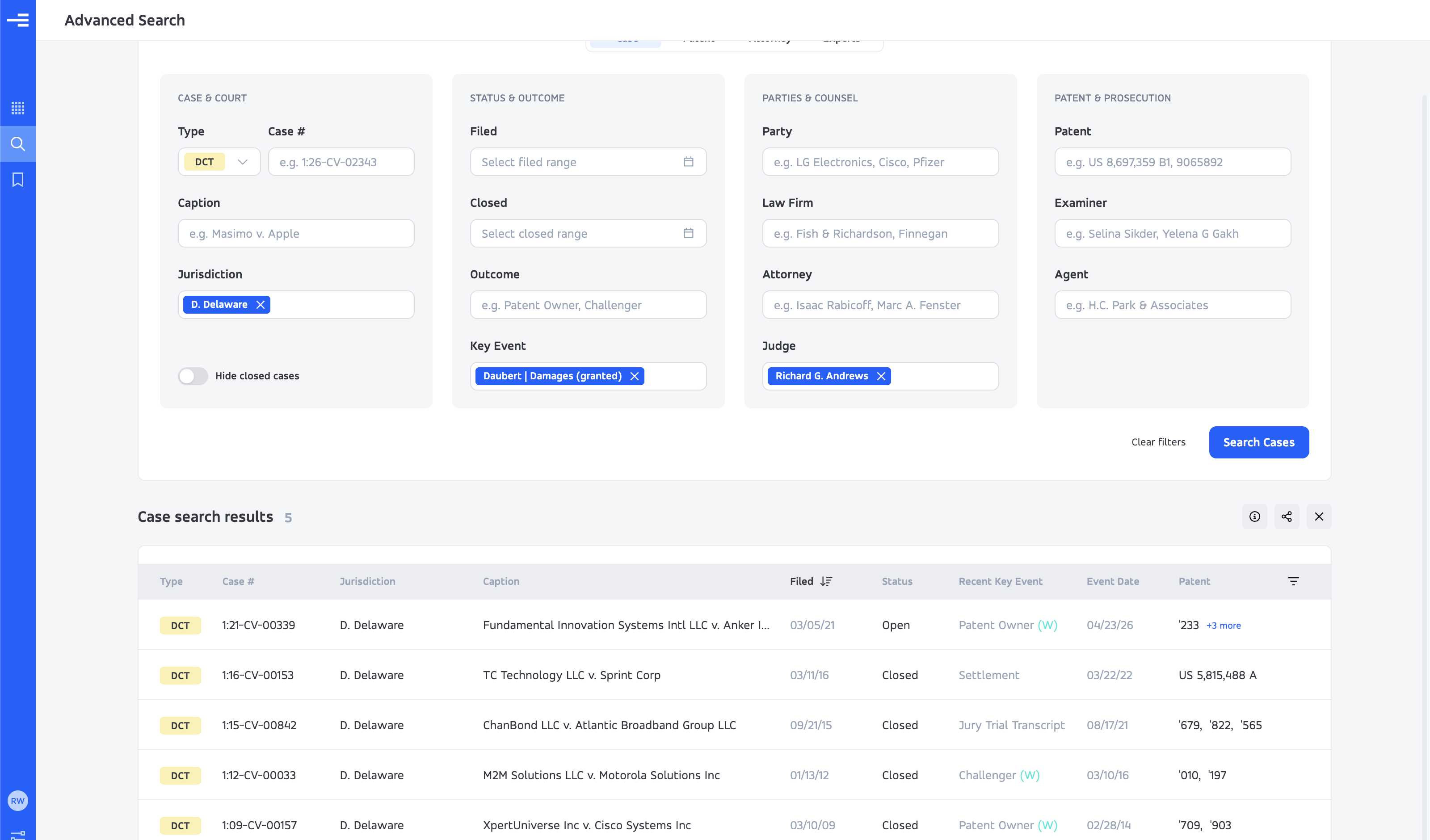
On advanced case search, work through the groups that matter to your question: case and court; status and outcome; parties and counsel; patent and prosecution. Select Search Cases to run the query. Clear filters resets the form.
- Sort and paginate: review the result table beyond its first page before treating it as the full result set.
- Info: inspect the applied-filter summary when returning to a saved search.
- Share: copy a link to the search. A recipient still needs the necessary access.
- Close: dismiss the results while retaining the filter form.
- Recent searches: rerun a previous query or use its row actions to share or remove it. Suggested queries may appear when there is no history.
Search state is reflected in the page address, making browser Back and saved links useful. Check the restored filters and sort order when reopening a search.
Worked example: find a damages-expert ruling
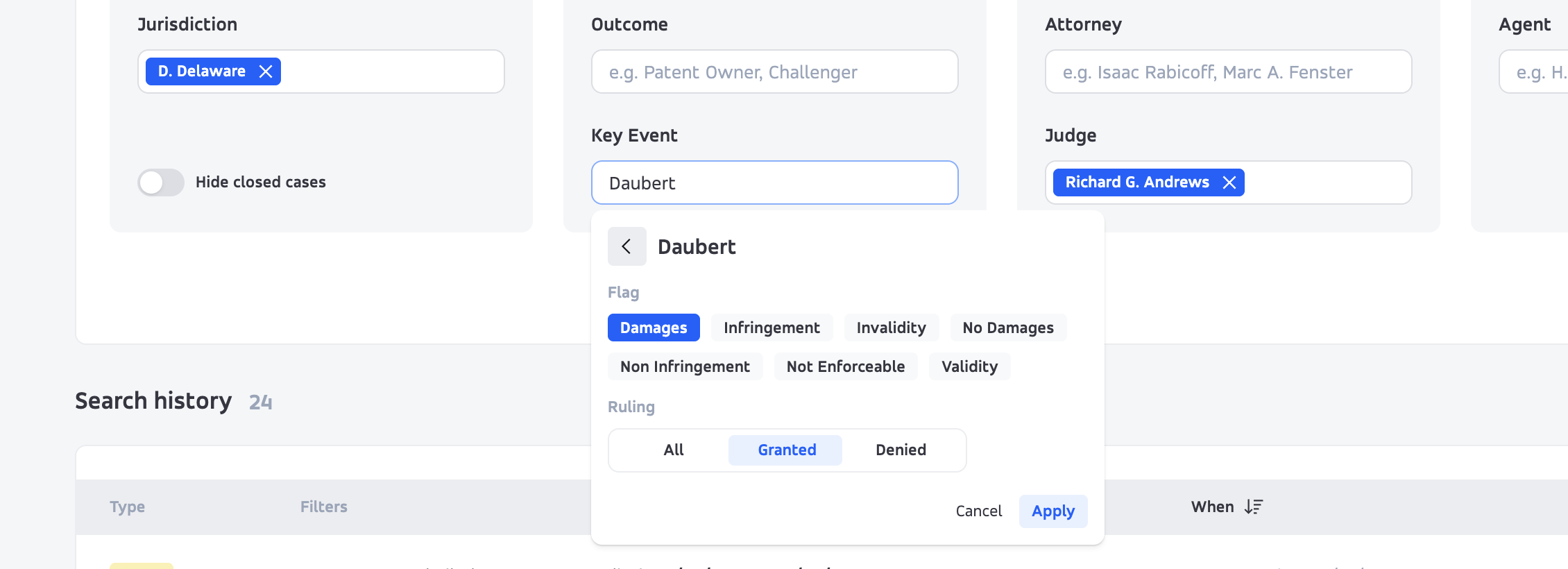
Outcome describes the case-level result. For a result on a motion or event, use Key Event and its Flag and Ruling fields.
- Choose a district court search and the jurisdiction D. Delaware.
- Select Richard G. Andrews as the judge.
- Open Key Event → Daubert. Select Damages as the flag and Granted as the ruling, then apply the selection.
- Run the search and confirm the applied chip reflects Daubert | Damages (granted).
- Open a matching case, locate the event in its docket, and read the order. Follow the record back to the motion and supporting brief.
- If a filing is sealed, look for an available public or redacted version. Verify the court's reasoning and the scope of the ruling before using the example.
Explore a case and follow its docket
Case pages cover district court matters (DCT), Patent Trial and Appeal Board proceedings (PTAB), Federal Circuit appeals (CAFC), and International Trade Commission investigations (ITC). Confirm the forum, number, and caption in the header.
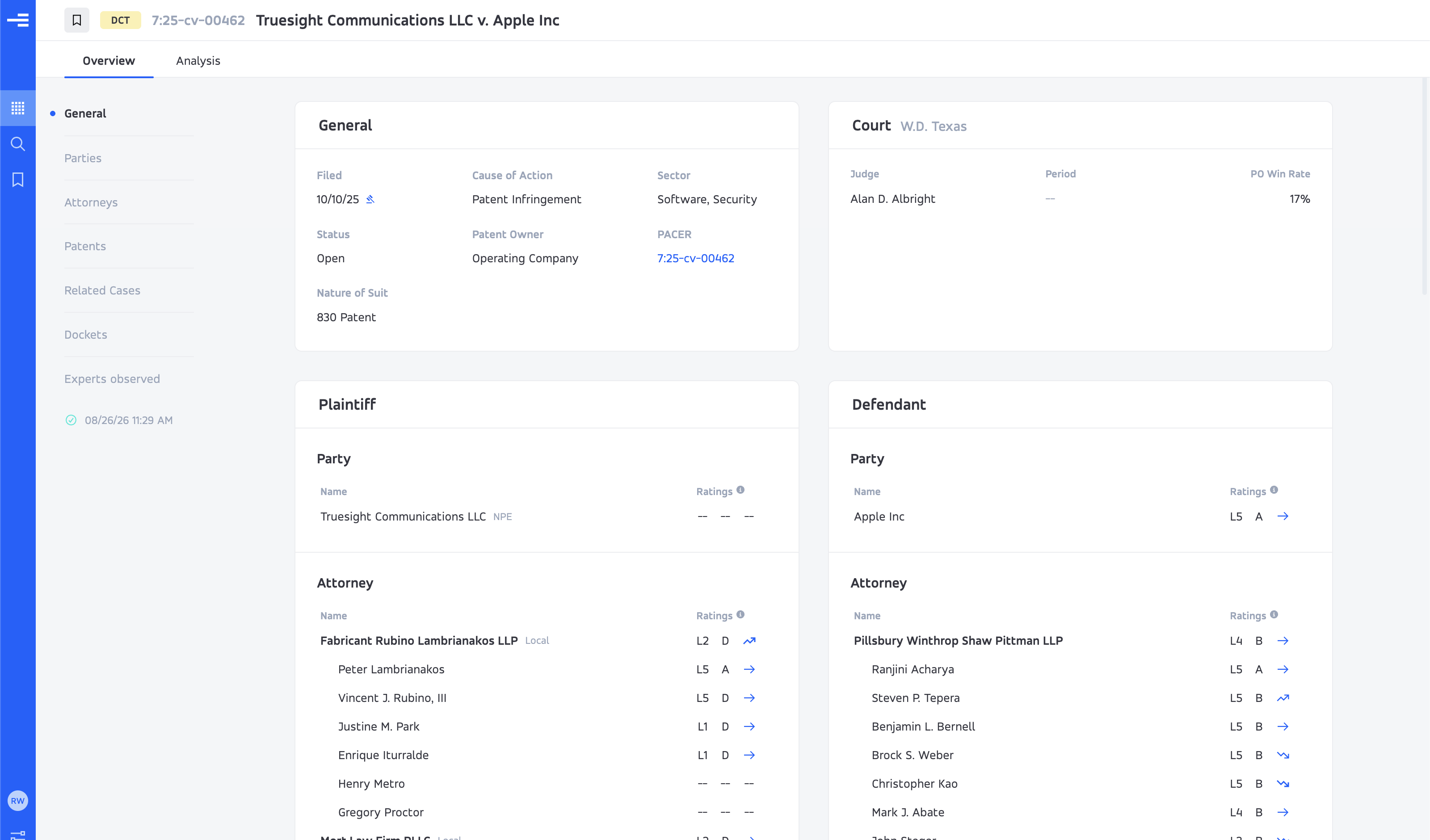
Overview brings together available case information, court and judges, parties and counsel, key events, patents, related proceedings, and observed experts. Its section navigation lets you jump to the part you need. Analysis opens available reports and source documents.
| Forum | Where to start |
|---|---|
| DCT | Case overview, complaint intelligence where available, key events, and the docket. Some accounts can request a docket update. |
| PTAB | The specific proceeding number, its events, and an available petition summary. Related proceedings may have separate records. |
| CAFC | Appeal identity, judges, events, and available analysis or documents. |
| ITC | Investigation status, orders, and determinations. Use the document reader; do not assume a generated case report is available. |
Move from a timeline event to a filing
Key events highlight significant activity in the available record. They are an index into the docket, not a guarantee that the record is complete or that every relevant filing has been classified.
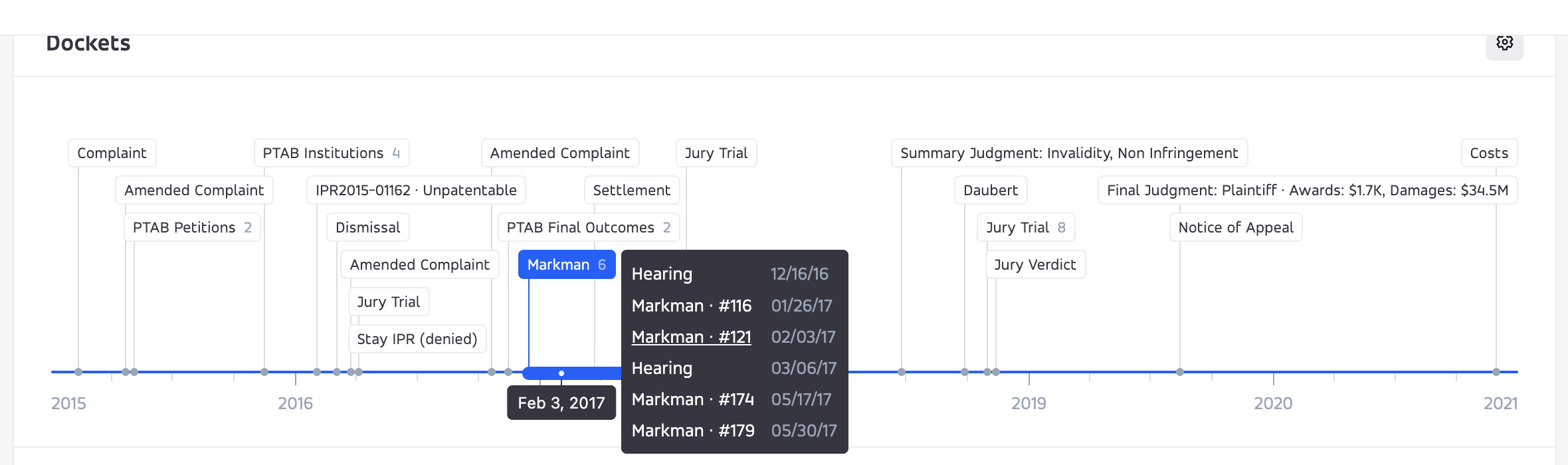
- Scroll to Dockets and locate an event on the timeline.
- Select a grouped event, such as a Markman group with a count. The timeline highlights its date range.
- Hover the group to see the individual filings with docket numbers and dates.
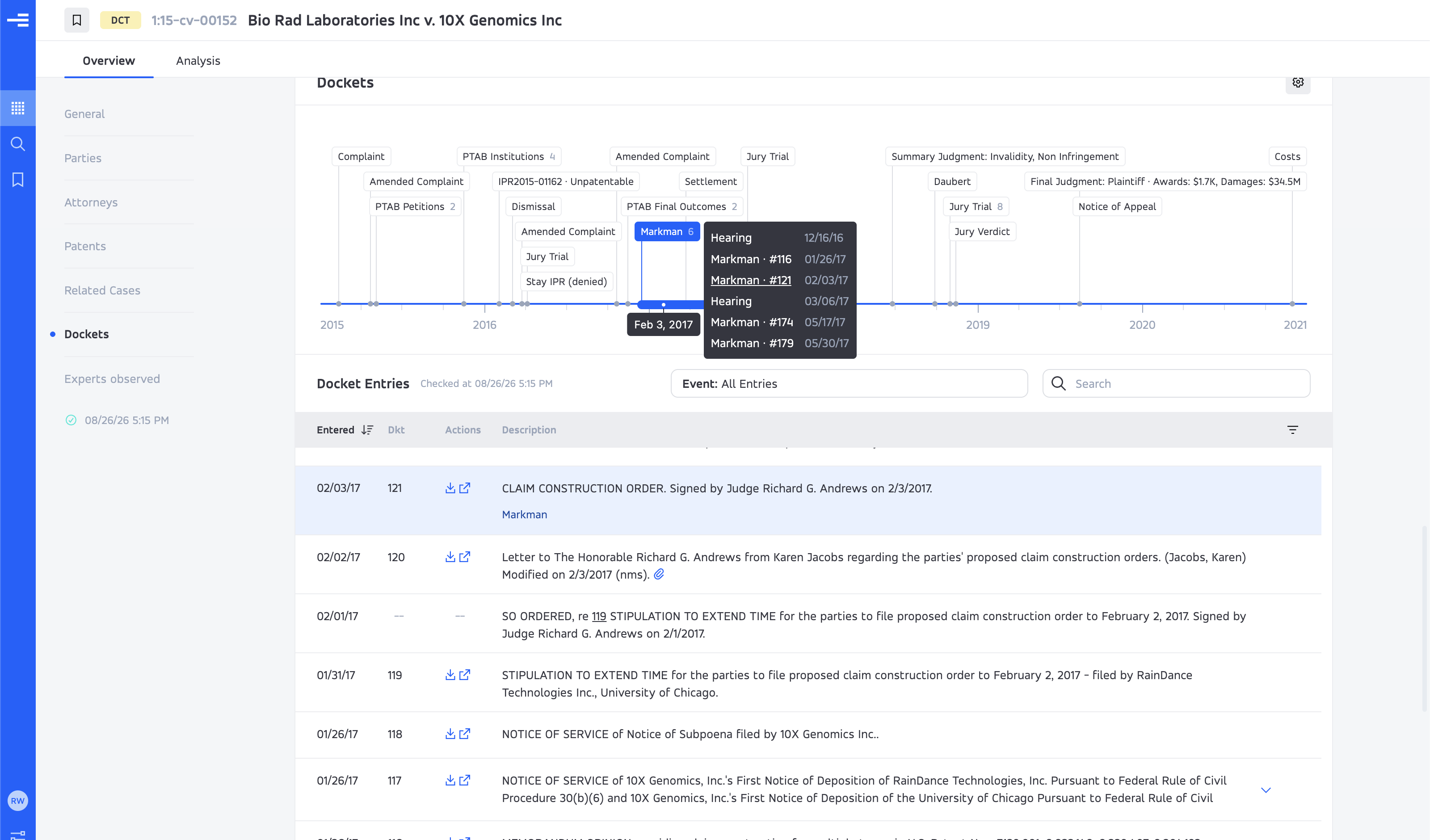
- Select a filing. The table moves to and highlights that entry.
- Read its description and event tag, then use the available document controls to open or download the file. Review any retrieval price or confirmation first.

Narrow the docket and check freshness
Use Event to switch between all entries and a particular key event. Use Search for words in entry descriptions, and table filters to narrow further. An entry can exist without an available document; a dash or unavailable message is different from a filing that does not exist.
Check the docket's last-checked information. Where your account offers a district court update control, review the action and any terms before requesting new records. This portal operation is separate from MCP, where automatic PACER case updates are disabled. For the conversational route, see cases in MCP.
Read a report and verify its sources
The Analysis reader can hold several tabs: a written report, the complaint or petition, a docket document, or a prosecution record. Use the Context panel to open available documents, key events, or patents. Switch between tabs while comparing the report with the underlying material.
Case intelligence starts with a filing, such as complaint intelligence or a PTAB petition summary. Patent intelligence follows a sequence of reports about the patent and prosecution record.
Start with complaint intelligence
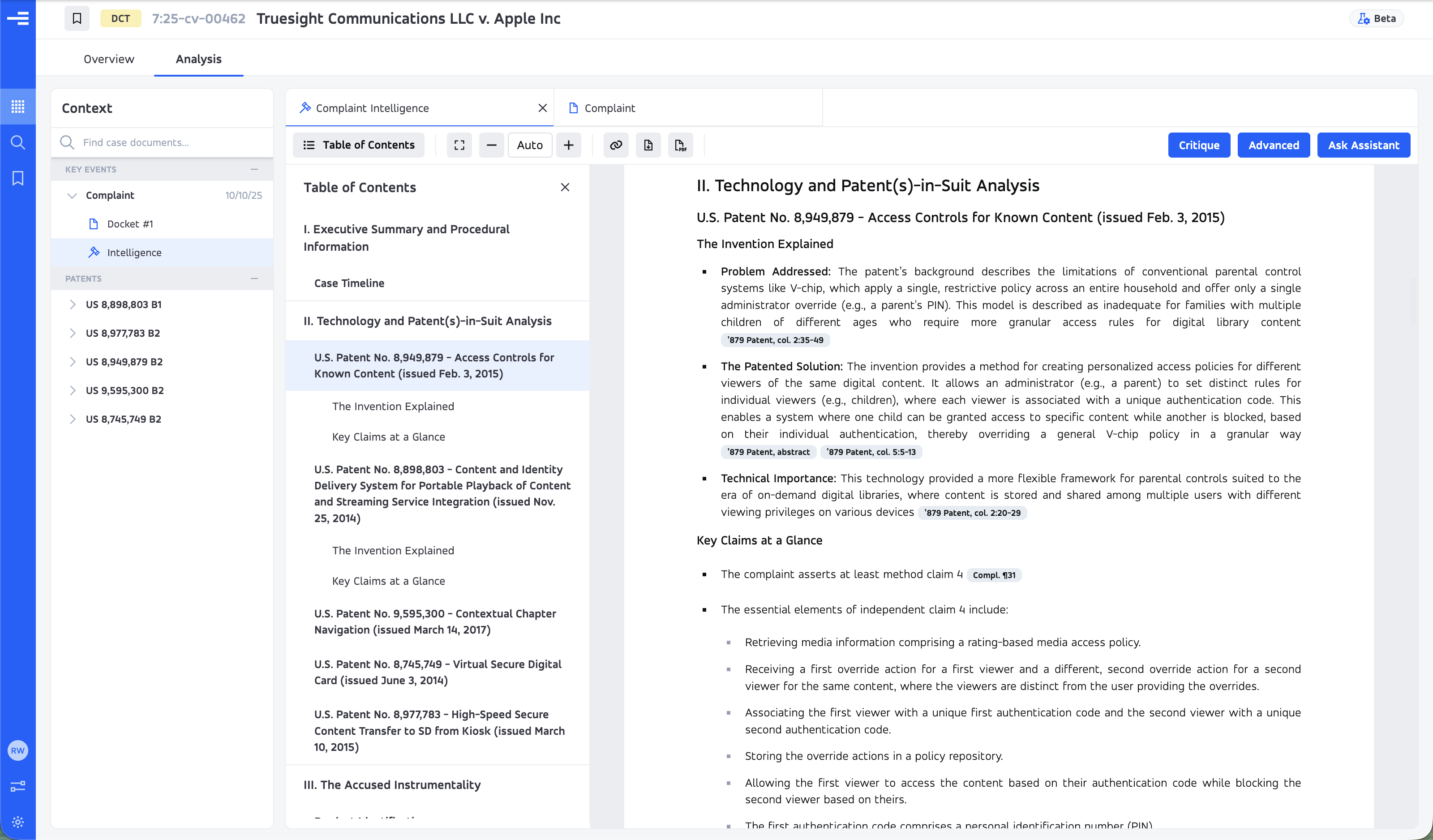
Where available, complaint intelligence helps organize asserted patents and claims, accused products and functionality, claim-to-allegation mappings, and early questions about infringement, claim meaning, willfulness, or pre-suit knowledge. It is an orientation to the pleading. An allegation summarized in the report is not an established fact.
Use the report to identify passages worth reading, then check material points in the complaint and other sources. Reports can be incomplete or mistaken, and citation processing may finish after the text is available.
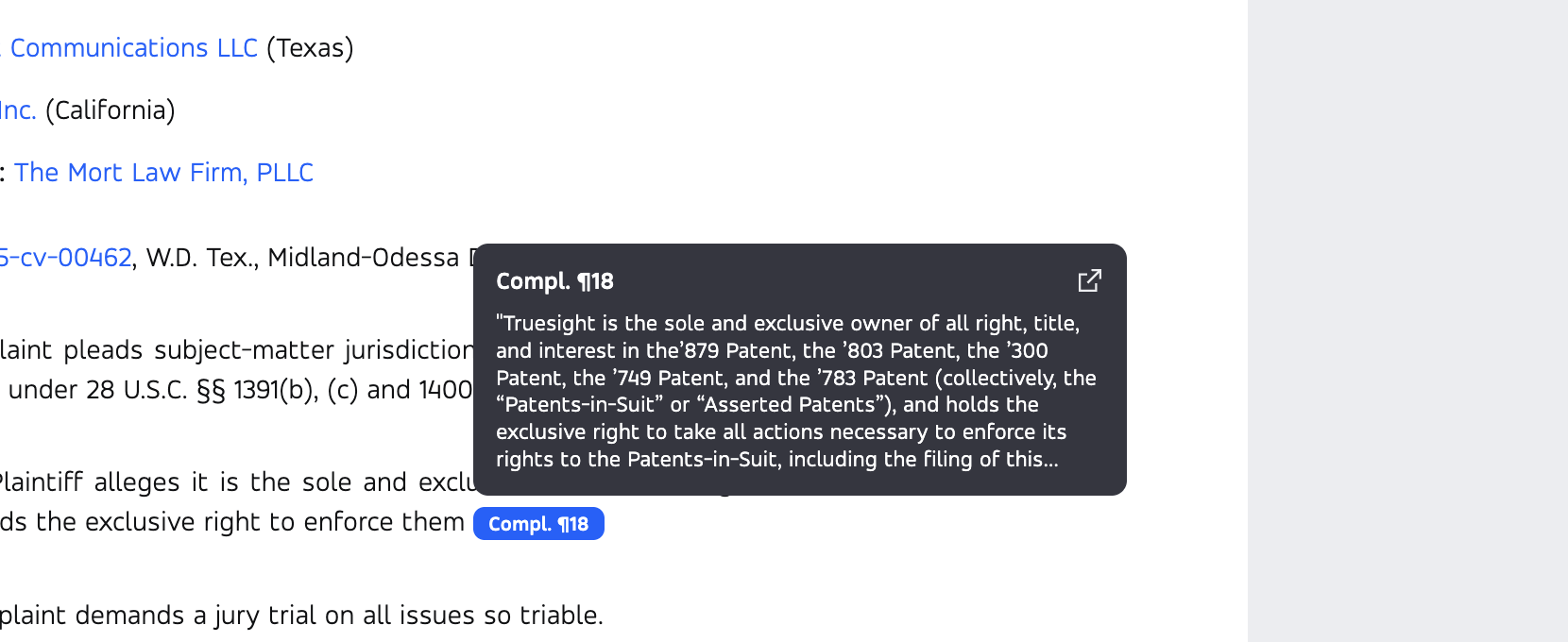
Follow a citation: hover, expand, verify
- Hover a citation pill beside the statement you want to check.
- Read the quoted passage in the preview.
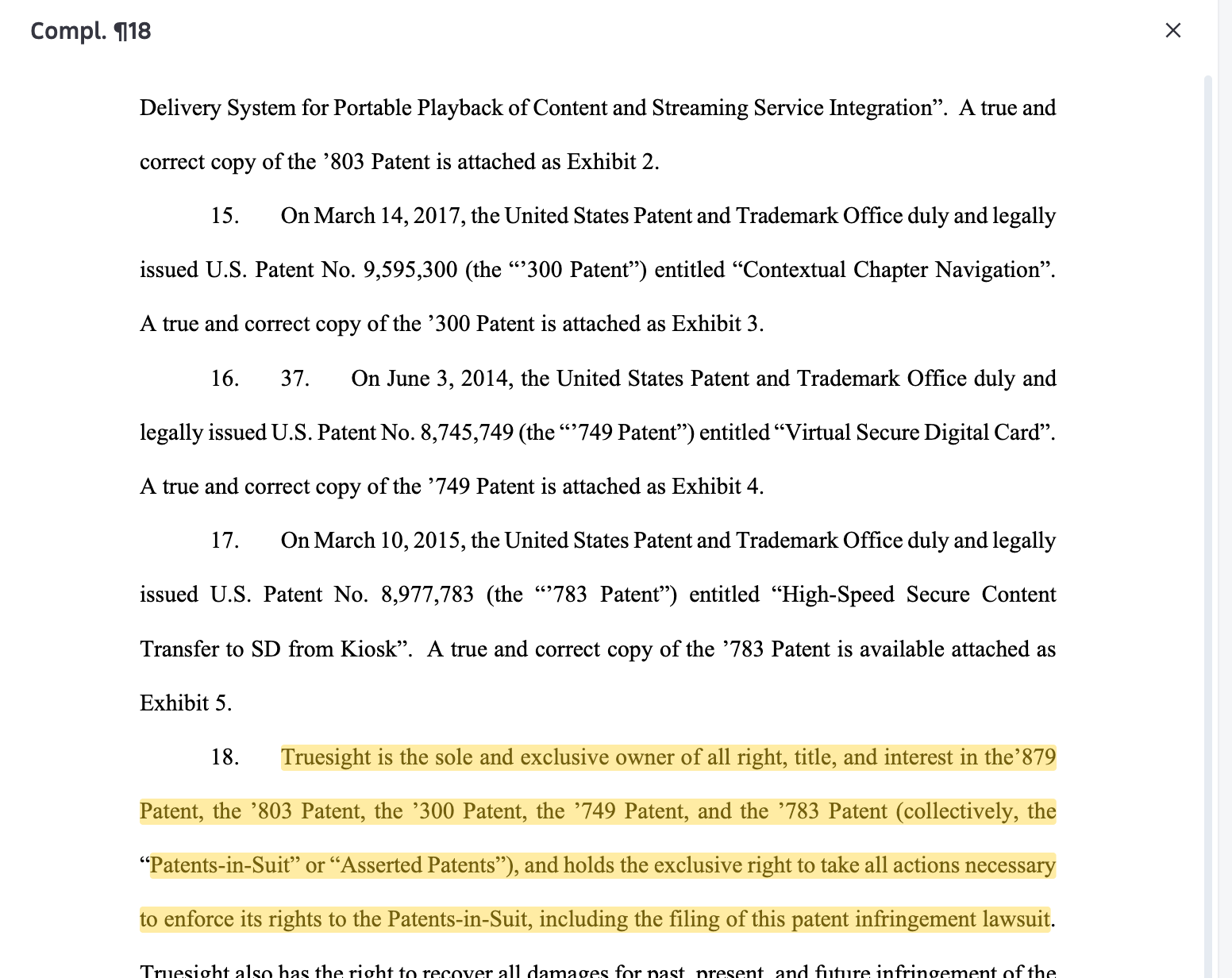
- Use the preview's expand control to open the source panel at the cited passage.
- Read the surrounding text. Use Full Source when you need the complete document.
- Check that the source supports the statement's wording, scope, and qualifications.
Clicking a pill alone is not the complete source-opening workflow. If there is no preview yet, citation linking may still be processing. Return after it completes or check the source separately; do not treat an uncited statement as verified.
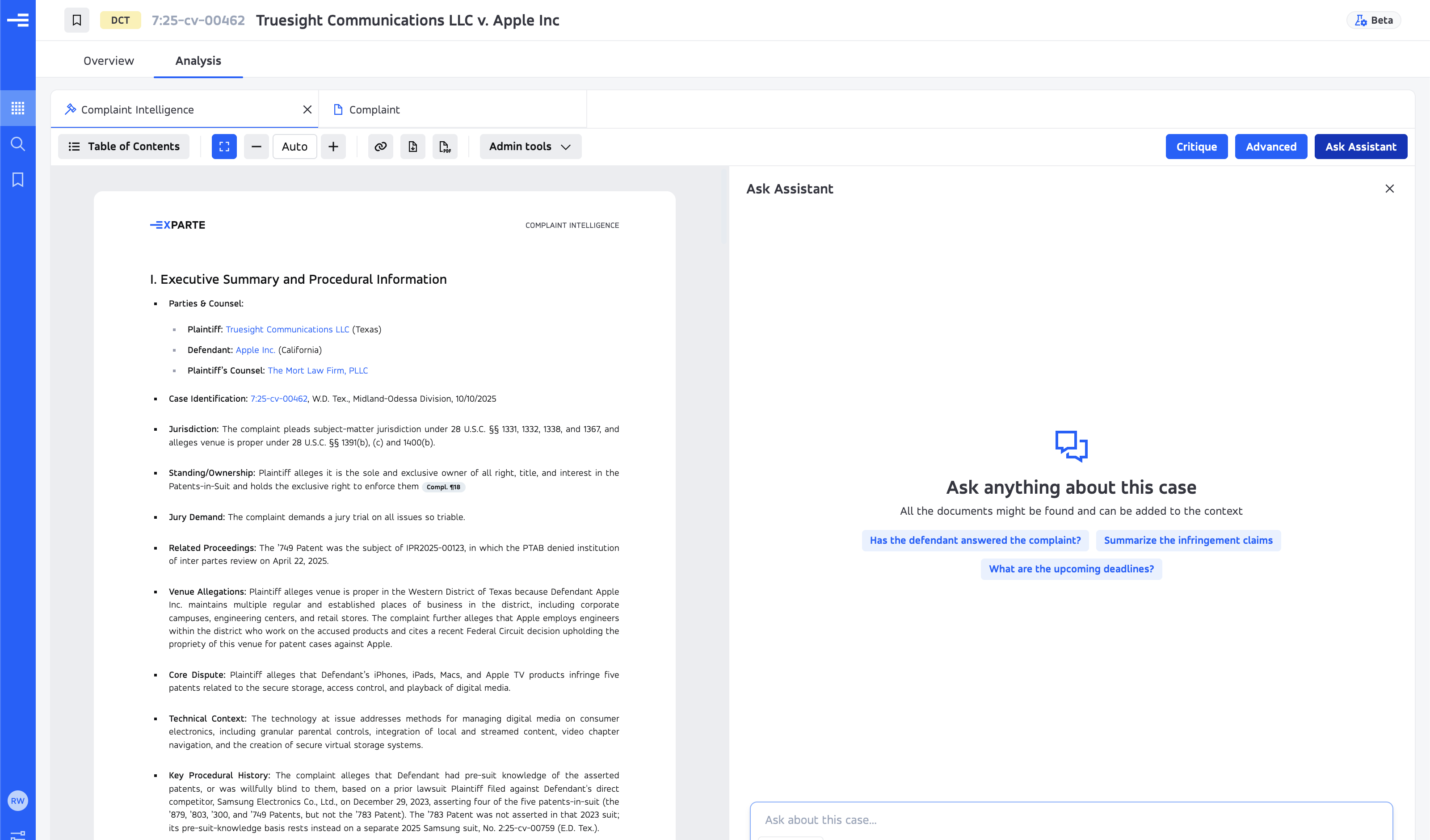
Use the reader controls
- Table of Contents
- Jump between headings and see your position in the report. Opening it may replace another side panel.
- Zoom and Expand view
- Use minus, Auto, and plus to adjust reading size. Expand view gives the report or PDF more width.
- Export
- Use available export controls to download the report or its PDF representation.
- Metadata
- Inspect the report's available provenance and processing information. This does not start Advanced Intelligence.
- Critique
- Start a review of the report against its supporting material, where this feature is available.
- Advanced
- Start a separate, deeper Advanced Intelligence run where permitted. Review the action before starting; regeneration may replace an earlier run.
- Ask Assistant
- Where enabled, ask a question about the case or report in the adjacent chat. Verify its response against the sources, just as you would the report.
Starting Critique or Advanced Intelligence requests new processing. Check any plan restrictions and the current processing estimate. A running stage or elapsed-time indicator is not a guarantee of completion by a fixed time. If a run fails, inspect the message before retrying.
Read a critique without mistaking it for a verdict
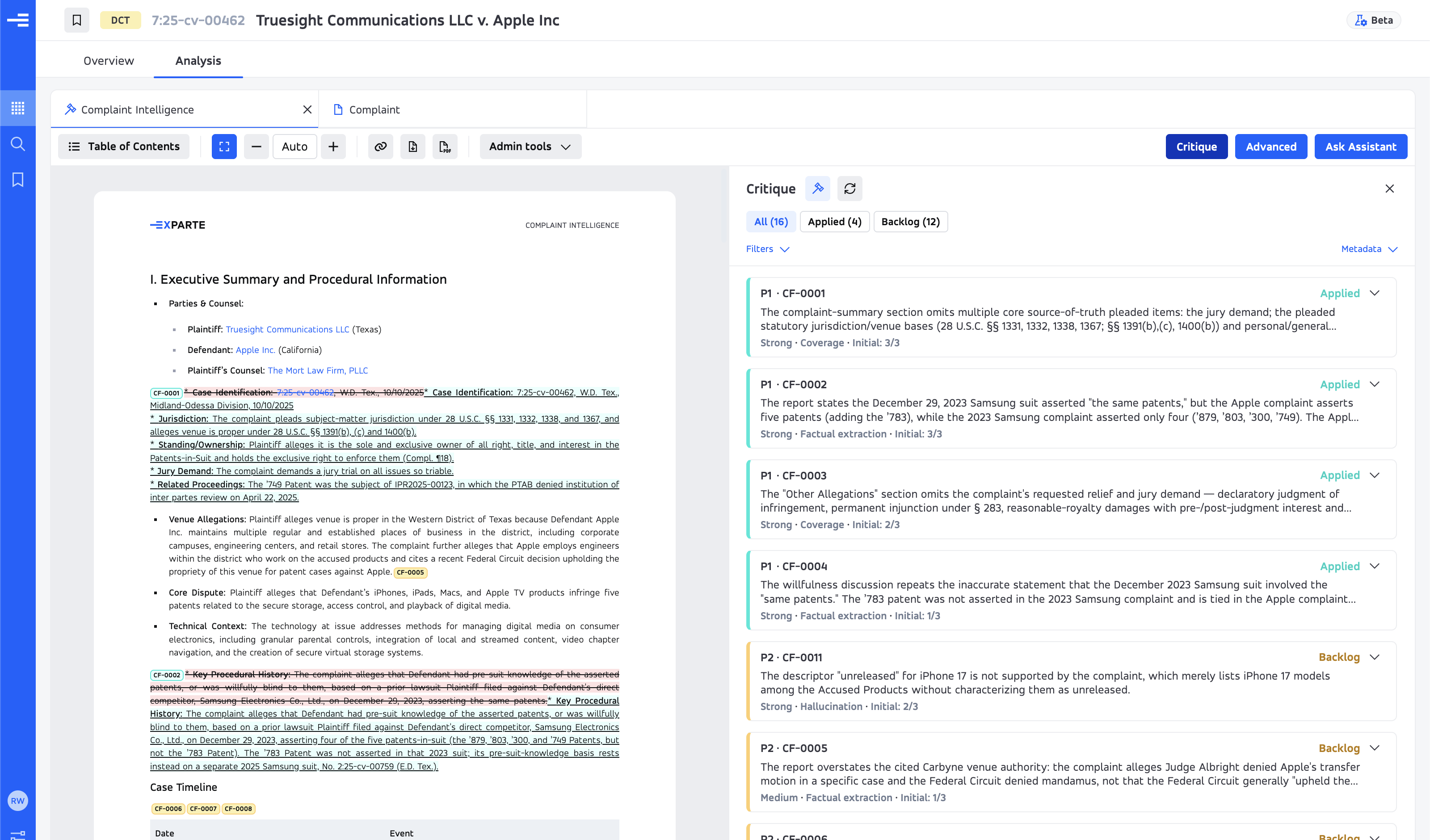
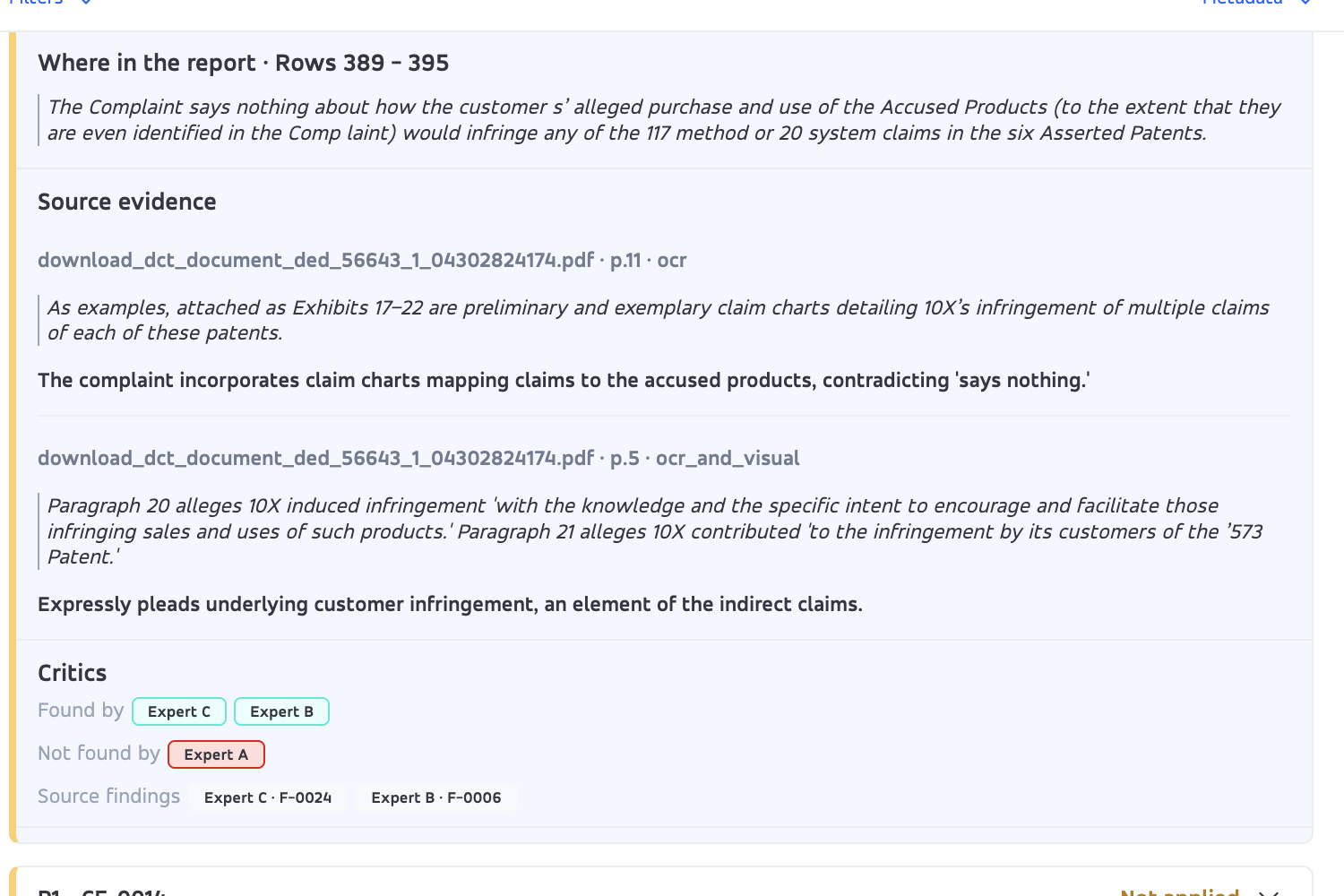
Critique looks for gaps, inconsistencies, and unsupported statements and presents a revised version for review. Read the finding and its cited evidence, then inspect the proposed or applied change in context.
- Finding identifiers and priority: identifiers such as CF-0001 let you refer to one finding; priority labels help order review.
- Applied: a change is represented in the revised report. Verify the revised wording.
- Backlog: a finding remains for attention and is not an applied correction.
- Not applied or rejected: the suggested change has not been incorporated.
- Needs confirmation: a question still requires assessment; it is not settled by the label.
- Evidence strength and reviewer agreement: these describe the system's assessment. Agreement is not independent proof that the conclusion is correct.
Expand a finding to inspect Where in the report, Source evidence, and any reviewer details under Critics. Compare the source page with the inline changes. Report an incorrect citation or characterization through an available feedback control or support.
For reading existing reports conversationally, see reports in MCP. The connector does not start the portal's report-generation or critique workflows.
Open documents and review retrieval costs
A docket entry can contain several files. Its document control opens the available file list, which may include page counts, availability, and a price or a Free label. Verify the entry and file before taking the next action.
- Find the entry in the case docket and open its document list.
- Review the file titles, page counts, and any displayed price or restriction.
- Use the open control, where available, to read the file in the viewer; use the download control to save it.
- If the action requires retrieving a file from the court, review the current confirmation and cost before proceeding.
Do not assume that a viewer action is always free or that every download is chargeable. Whether a file is already held, requires retrieval, or is available to your account determines the action shown. The current dialog is the place to confirm the operation.
Recognize different limitations
- Spending limit: a monthly retrieval allowance or account restriction may prevent another purchase. Check the message and contact your account administrator or support about the limit.
- Unavailable file: the record may identify a filing without providing a downloadable file. Nonpublic ITC documents and sealed filings are not made public by their appearance in a docket.
- Failed retrieval: a temporary error is different from an unavailable file. Preserve the entry and error details before retrying or contacting support.
- Large PDF: some files take time to download and render. Watch the progress indicator; persistent lack of progress is worth investigating.
MCP has a different policy: purchases are disabled, including requests with a zero-dollar maximum. It can return an available stored document, but it will not buy a missing one or automatically update a PACER case. See documents in MCP.
Explore parties, firms, attorneys, and courts
Follow linked names from searches or case pages to available profiles. Confirm the entity, aliases, and record context before interpreting its litigation history. Similar names and a firm's appearance in a historical record do not necessarily establish a current relationship.
| Profile | Useful sections, where available |
|---|---|
| Party | Identity, ratings and trends, analytics, cases, and litigated patents. |
| Law firm | Firm information, ratings, filterable analytics, attorneys, and practice areas. |
| Attorney | Identity, ratings, cases, trends, practice areas, and links to firm records. |
| Judge | Court relationship, cases, outcomes, analytics, and statistics. |
| Court | Court information, cases, analytics, and statistics. |
Move from a summary to the underlying matters
General identifies the subject and summarizes the record available on the page. Analytics shows patterns such as forums, counterparties, and outcomes. Where filters are offered, narrow them to the court, matter type, or period relevant to your question.
Use the sortable, paginated Cases table to inspect the matters behind a summary. A party's Litigated patents section connects to patent pages; a firm's Attorneys section connects to individual profiles. Practice areas describe the work represented in the available record.
Check the unit behind a count: cases, proceedings, patents, parties, and appearances are different measures and may overlap. A profile is a view of covered records, not a guarantee of every matter or affiliation. Reports live on case and patent pages, rather than on entity profiles.
Read the rating legend before comparing profiles. For conversational firm and entity research, see firms and people in MCP; the supported operations differ by interface.
Research expert witnesses
Expert search helps build a shortlist from the available litigation and profile records. Access may be limited by plan or release availability. It supports research; it does not replace conflicts checks, credential verification, interviews, or assessment of suitability for a matter.
Search in plain language
Where Experts Search is available, describe the technology, opinion type, and record you want. A focused request is easier to evaluate than a broad label.
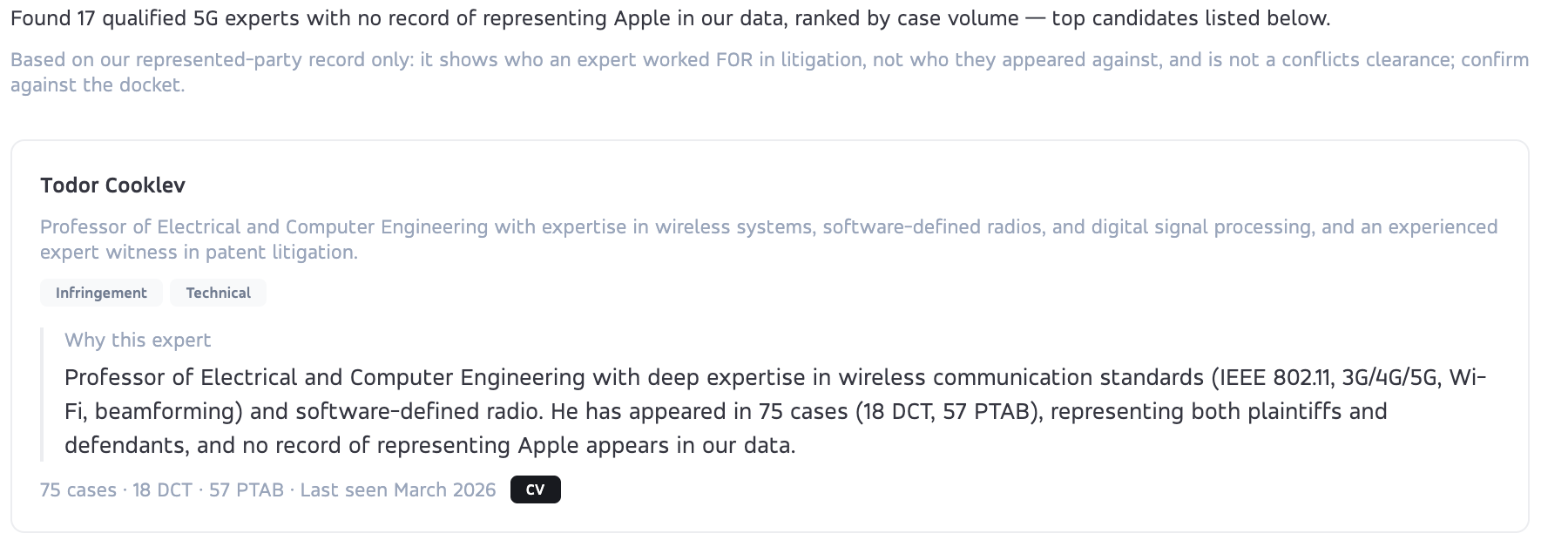
Find experts with 5G-related technical experience and patent litigation testimony. Identify the source records for their experience and any represented-party records involving Apple, Inc.
Use the available Speed vs. depth control to choose the search effort: Auto, Fast, Balanced, Deep, or Extra where offered. Deeper searches may take longer. Read the result summary and limitations before opening the candidates.
Cards can show opinion-type tags, a Why this expert explanation, case counts by forum, last-seen information, and a CV link where available. Treat ranking and explanations as reasons to inspect the record, not as endorsements.
Build an advanced expert query
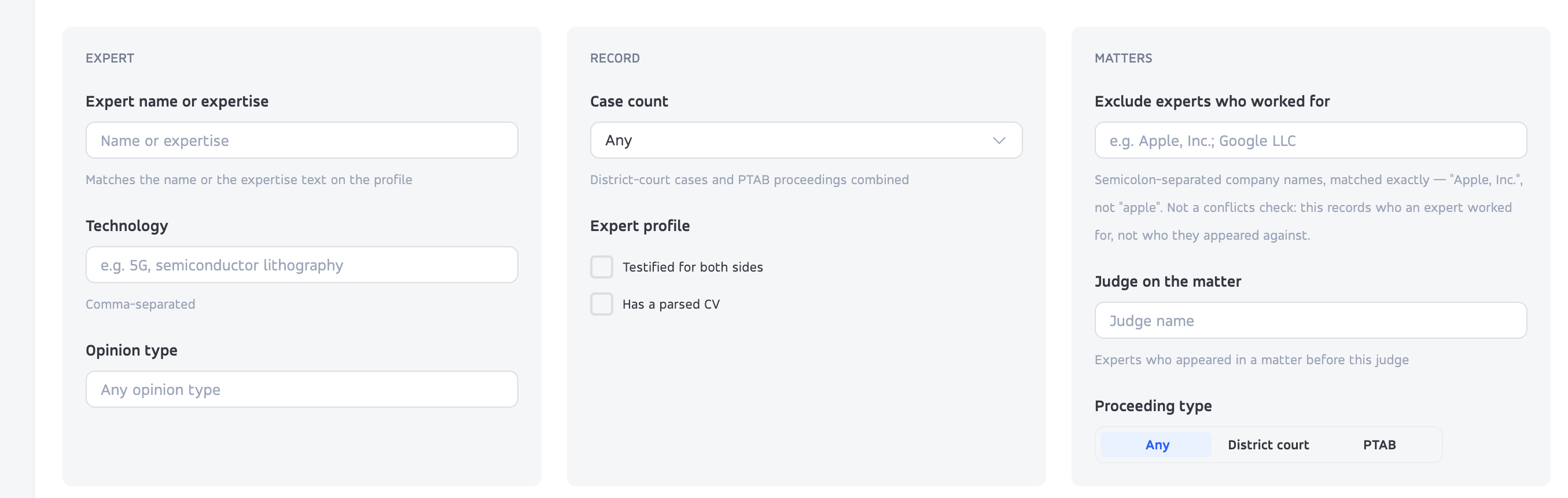
The Experts tab can organize filters into three groups:
- Expert: name, expertise, comma-separated technology terms, and opinion type.
- Record: case-count criteria, testimony on both sides, or availability of a parsed CV.
- Matters: represented-party exclusions, judge, and proceeding type such as DCT or PTAB.
For a represented-party exclusion, use the exact company-name format shown by the control; multiple names may require semicolons. A broad spelling such as “Apple” may not behave like “Apple, Inc.” Review the query and returned evidence.
“Worked for” and “worked against” are different. A represented-party exclusion concerns the party on whose behalf an expert appeared. It does not prove the expert never appeared against that company, has no business relationship with it, or is free of conflicts. No matching record means only that the selected search found no matching covered record; aliases, sealed material, unnamed experts, and coverage gaps can affect the result.
Inspect the profile and individual appearances
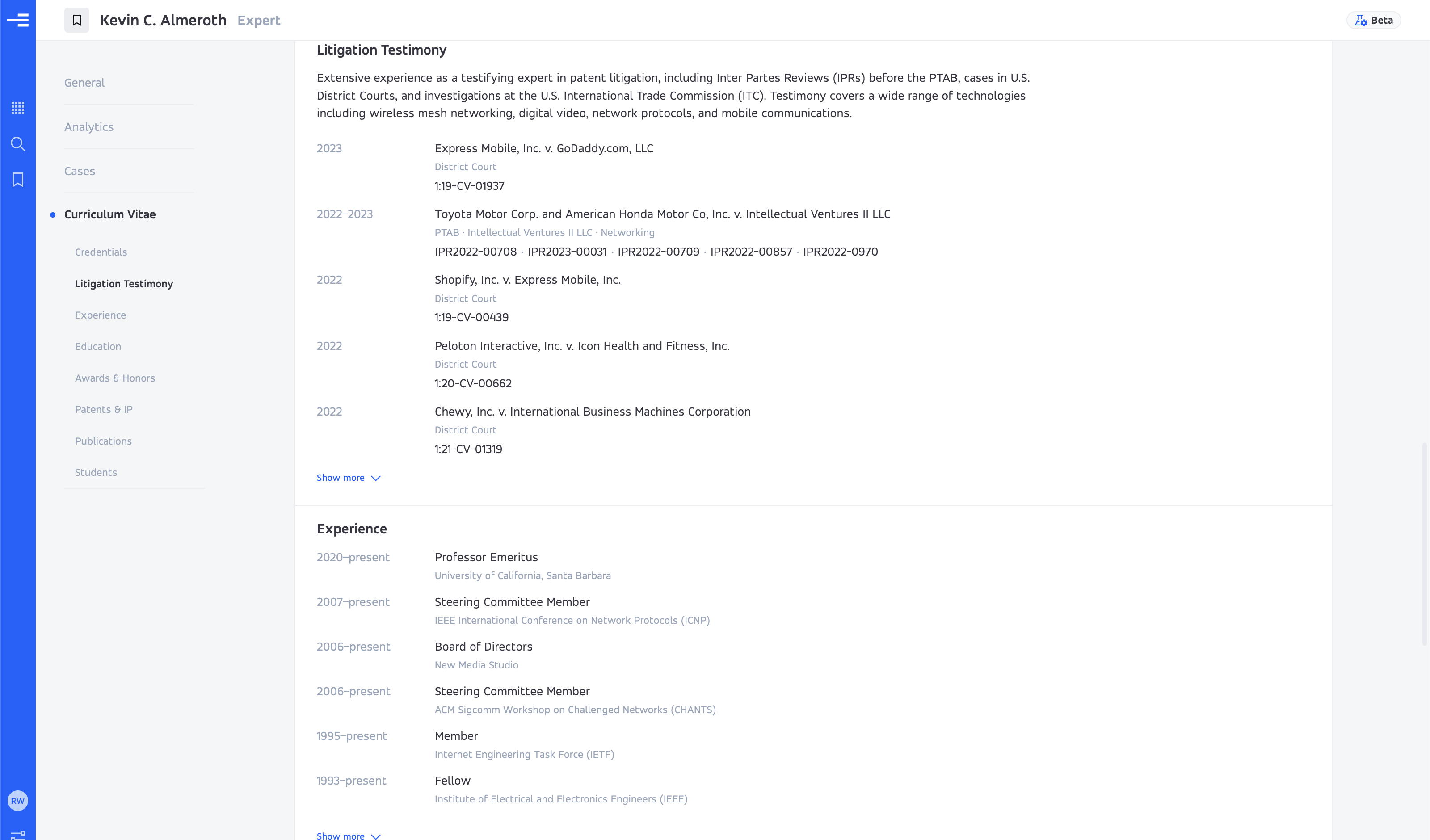
A profile may include case and role summaries, technical focus, Challenge Activity, top appearances, analytics, and cases. A CV section can include credentials, litigation testimony, experience, education, publications, and patents. Availability varies; verify consequential qualifications against their sources.
Challenge Activity summarizes recorded challenges, exclusions, and survived challenges. Those counts do not explain the grounds or scope of an individual decision. Read the motion and ruling before drawing conclusions about an expert's suitability.
- In the profile's cases table, use the case-details control at the right of a row.
- Read the Represents block to identify the party and role.
- Inspect the dated expert-related docket entries. Expand an entry for its full description.
- Open available public documents to check the challenge, response, and ruling. Review retrieval costs where applicable.
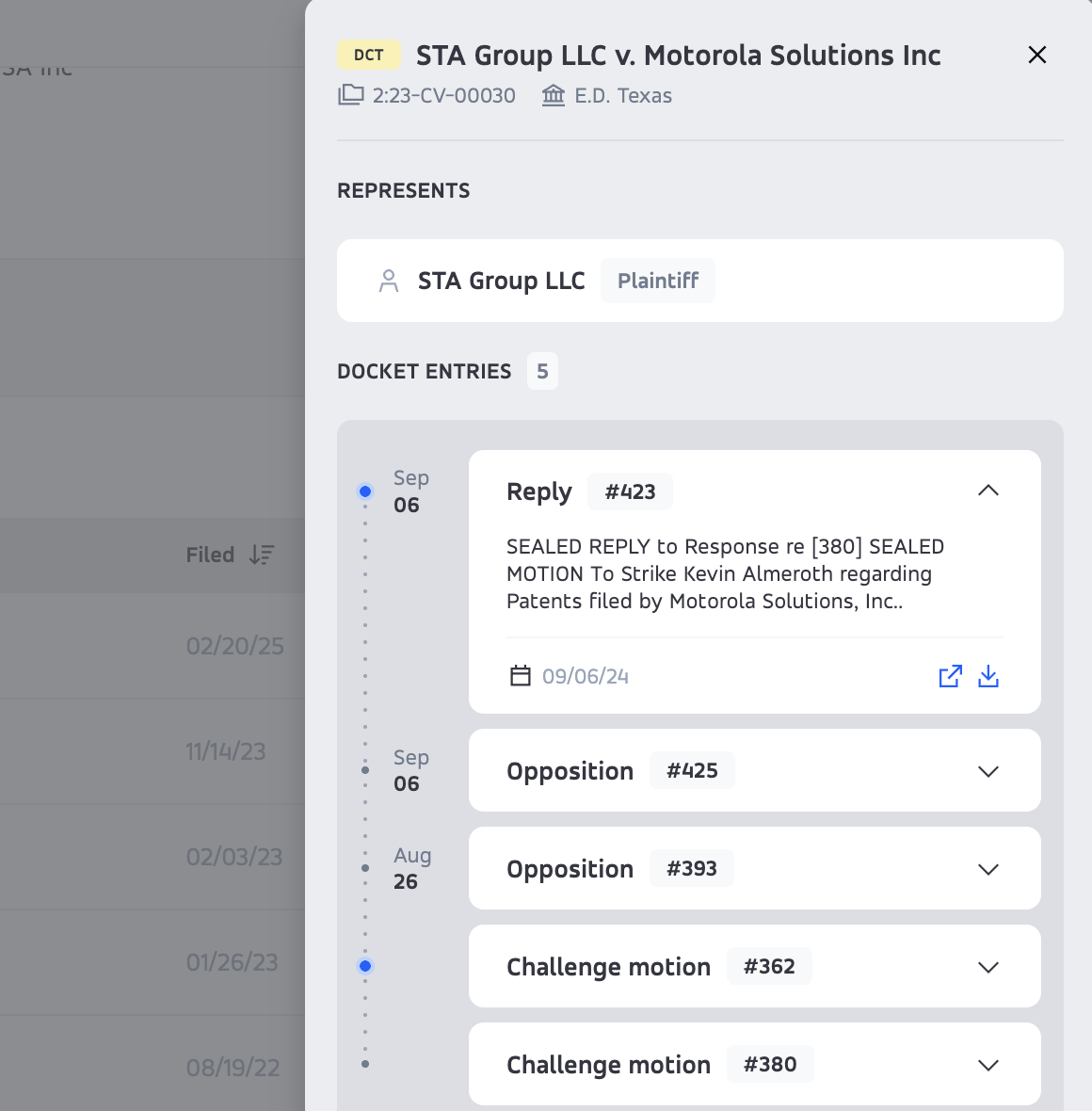
Observed experts may also appear on case pages, and supported profiles can be kept in Saved items. These are portal workflows; do not assume the MCP connector exposes the same expert-search features.
Interpret ratings and statistics
Party, firm, and attorney ratings summarize the available record relative to peers and are separated by forum. An entity can have different ratings in district court and at the PTAB. Check the forum label and the information icon beside a rating before comparing it.
| Measure | How to read it |
|---|---|
| Experience | The interface uses L5 through L1 for relative experience, from its highest category to its lowest. This is a record-based product rating, not a credential or universal measure of ability. |
| Grade | A through E summarize relative performance under the product's rating method. Inspect the underlying matters and sample before using a grade in a comparison. |
| Trend | Arrow direction and weight summarize recent relative performance. The guide's examples use the previous two years; consult the current in-app legend for the applicable window. |
| Dash | Insufficient record for a rating in that forum. It is not a zero or a poor grade. A flat trend arrow is a displayed result, rather than missing data. |
Local identifies local counsel in a case record, rather than necessarily lead counsel. NPE and Operating Company are party classifications shown in the product. PO Win Rate refers to patent-owner outcomes under the displayed measure.
For a meaningful comparison, use the same forum, date range, role, measure, and record unit. Ask how the numerator and denominator are defined, how unknown outcomes are treated, and whether the sample is large enough. A historical win rate or rating is not a prediction of the next case.
Study a patent and build a research plan
A patent's Info tab brings together available bibliographic information, analytics, related cases, citations, and assignments. Confirm the patent number and title before opening Analysis for reports and source documents.
If a report is not available and your account permits generation, the portal may offer to start it. Review the operation, prerequisites, and current processing estimate before proceeding. Follow the displayed stage and return to the patent page later; avoid starting a second run simply because the first is still processing. A failed run may offer a retry.
Read the four reports in order
- Prosecution history: follow the application's progress, amendments, applicant arguments, and examiner positions. Identify changes relevant to understanding the issued claims and questions for counsel.
- Examiner search: inspect what the available record shows was searched: sessions, Boolean strings, classifications, and databases. Compare the recorded searches with the technical concepts and claim limitations that matter.
- Invalidity framework: assess proposed directions for further prior-art research in light of the first two reports. A search vector is a research question, not a determination that a patent is invalid.
- Directed search memo: where available, turn selected vectors into instructions for a searcher: scope, dates, terms, classifications, databases, Boolean logic, and requested deliverables. Review the memo before sharing it.
Use gaps in the record carefully
A recorded query may be very narrow, omit a useful synonym, or cover only some classifications or databases. An examiner-search report can help identify those issues. A zero-result query does not establish novelty, and the absence of a search term from the available record does not prove that no related search ever occurred.
For example, prosecution records may show a claim limitation added before allowance. If the available search records do not show a query directed to that limitation, that is a question to investigate. Verify the amendment, the examiner's explanation, and the search records before proposing a research vector. A directed memo can then specify terms, classifications, dates, and sources for looking for material that addresses the limitation.
Questions about an amendment's effect on claim scope or equivalents require separate legal assessment. The reports support research; they do not determine validity, enforceability, infringement, or the legal effect of prosecution statements.
Check the sequence against the sources
- Use the actual issued claims and the relevant prosecution documents, not just a report summary.
- Distinguish what a record states from the report's inference and from a proposed next search.
- Verify any proposed critical date and search scope before commissioning work.
- Check whether source citations are ready; report text can become readable before citation linking finishes.
- Look at related PTAB and other proceedings, recognizing that each is a separate record with its own status and documents.
The MCP patent workflow can help read available patent records, existing reports, text, and pages in Claude. It does not start this portal report-generation sequence.
Keep a research list with bookmarks
Use a record's bookmark control to add it to Saved items. The bookmark icon in the main navigation opens your collection. Supported types include cases, law firms, attorneys, patents, parties, and experts where available.
- Open the exact record and select its bookmark control.
- Open Saved items and choose the relevant tab.
- Use the search field to narrow that tab; saved cases can also be filtered by forum.
- Compare the filtered count with the total so you know whether items are hidden by the filter.
- Use the bookmark control again when you want to remove an item from your saved collection.
Removing a bookmark changes your collection; it does not delete the underlying case or patent. A bookmark keeps a reference to a record, rather than freezing the current report, data, or access permissions.
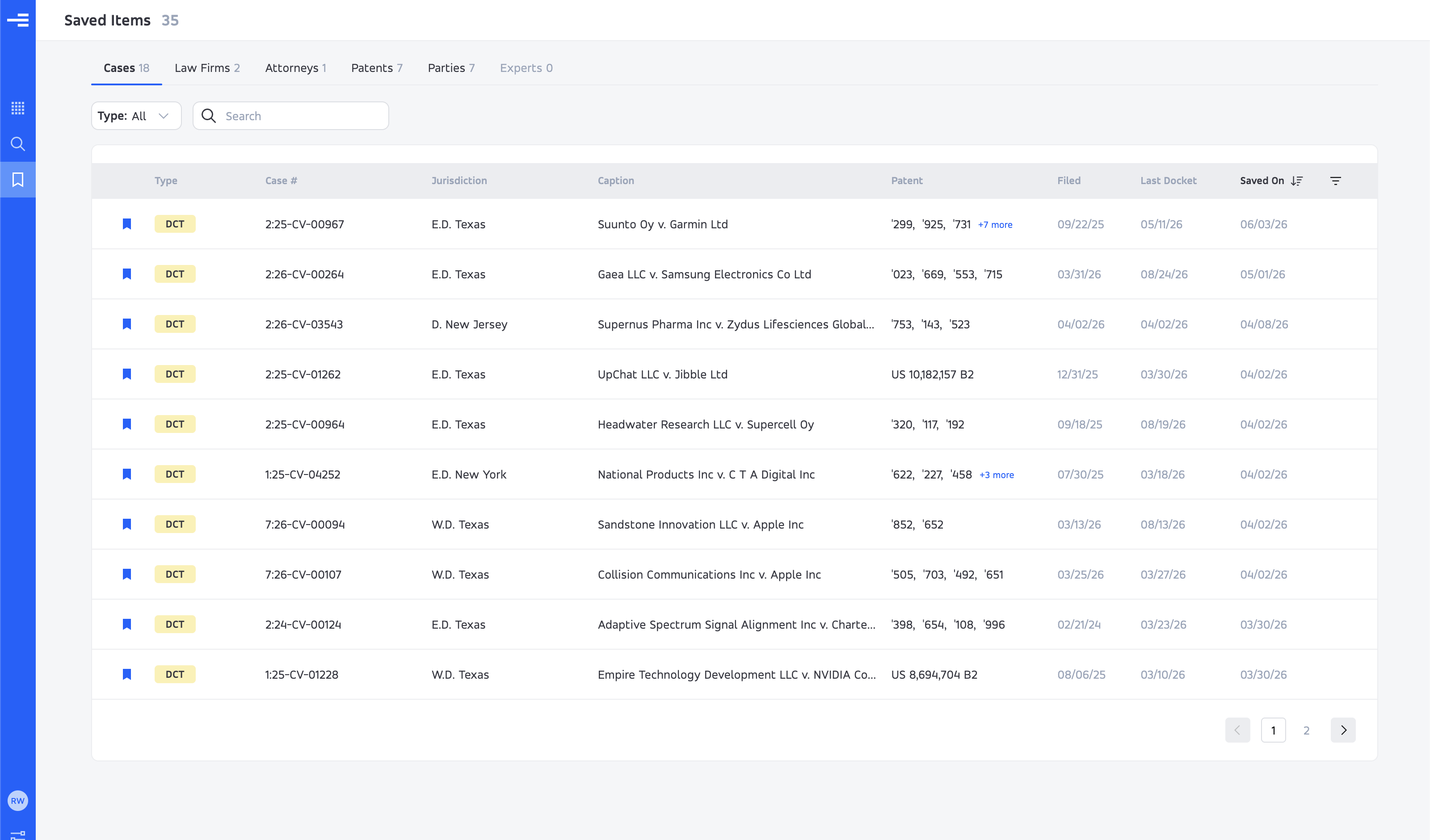
In Claude, changing bookmarks requires the optional write permission. See MCP permissions before authorizing that separate workflow.
Follow a research question across the portal
From a ruling to a useful brief
- Use advanced search to combine jurisdiction, judge, and a Key Event with its Flag and Ruling.
- Open a matching case and locate the event in the docket.
- Read the order, then find the motion and supporting briefs behind it.
- Look for a public redacted version if a filing is sealed.
- Verify the reasoning, procedural posture, and actual ruling before using the example in another matter.
Prepare for a pitch or early strategy discussion
Open the prospective client, adverse party, opposing firm, or relevant patent. Review covered matters, counterparties, counsel, and outcomes. Narrow analytics to the appropriate forum and period, then read representative orders and briefs. Distinguish supported patterns from thin samples and missing records.
Assess a new complaint or demand
Search the plaintiff, asserting entity, patent, and case. Use the party profile and related matters for context, then read available complaint intelligence with the pleading beside it. Separate allegations about products, claims, knowledge, and willfulness from established facts. Bring the verified record and remaining questions to your legal team's assessment.
Turn a patent question into a directed search
- Inspect patent identity, assignments, related cases, and available prosecution information.
- Read prosecution history, examiner search, and invalidity framework in sequence.
- Test proposed research vectors against the cited claims and records.
- Select a defined scope for further research.
- Where available, generate a directed search memo and review its dates, terms, classifications, databases, and deliverables before sharing or commissioning work.
Check for earlier patent challenges
Look through a patent's related cases for PTAB proceedings and other challenges. Open each relevant proceeding, confirm its status, and read available petitions, summaries, and decisions. Compare those records with the prosecution history. An absent result is not a guarantee that the patent has never been challenged.
Share a useful link with the right access
Searches, case views, reports, and document views often have useful URLs. Use the dedicated Share control where available, and confirm which record, tab, or page the generated link opens. Browser Back can also help retrace a sequence of searches and tabs.
Distinguish a navigation link from a sharing permission
Copying an address does not necessarily grant access. A colleague may need an Ex Parte account and the appropriate plan or record permissions. A public summary, when one exists, may show less than the signed-in report.
Where a sharing dialog offers recipient restrictions, public access, or expiration, choose deliberately and read the resulting access settings. Do not assume all link types offer the same controls. Before making a link public, confirm that the material is appropriate for anyone who might receive or forward it.
- Open the exact report or document view you intend to share.
- Inspect the share dialog's access and expiration options.
- Create the appropriate link and verify its destination and intended access.
- Use the available sharing controls if you later need to change or revoke access. Revoking a link does not recall copies already downloaded.
Exports and screenshots are separate copies. Check them for account information, personal details, or material outside the intended scope before distributing them.
Troubleshooting, account access, and help
- A company or case does not appear in quick search.
- Confirm the record type, add a more specific name or identifier, and try the full search page. Typeahead results are limited; a short list is not a complete absence check.
- A date-range search returns nothing.
- Fill both ends of the range and review other filters. Asking for a closed date while hiding closed cases can conflict. Remove restrictions one at a time and inspect the applied-filter summary.
- A citation pill does not open its source.
- Hover the pill, then use the preview's expand control. Citation linking may still be processing after report text appears. If the issue persists, capture the report link and citation location for support.
- A report or Analysis tab is unavailable.
- The report may not exist yet, may still be processing, or may require different account access. Read the displayed message. A public summary, if available, may have a different scope.
- A PDF takes a long time to open.
- Large files may need significant download and rendering time. Check progress and connectivity. If progress stops or an error persists, retain the document link and message rather than repeatedly starting retrievals.
- A docket looks out of date.
- Check the last-checked information. If a portal update control is available, review the operation and any applicable cost before using it. MCP cannot request an automatic PACER update.
- A document cannot be retrieved.
- Distinguish an account spending limit, access restriction, unavailable file, and temporary retrieval failure. Include the case and docket entry when contacting support.
- A report run fails.
- Read the failed stage or error message. Use an offered retry when appropriate, or contact support with the patent or case link and report type. Do not assume a repeated request resumes the same run.
- A feature in this guide is missing.
- Features vary by plan, role, release availability, forum, and record coverage. Check the visible account message and ask about access rather than assuming the underlying record is absent.
Data and account activity
These research workflows use available litigation, patent, prosecution, and related source records. Your searches, viewed items, saved records, report requests, and sharing actions are a separate category of account activity. Consult the Privacy Policy and the terms applicable to your account for how information is handled.
This guide does not establish retention periods, privilege, work-product protection, or discoverability. Discuss legal handling with your counsel, and ask Ex Parte for any specific organizational requirements about retention, access, or deletion.
Contact support
Contact support@exparte.com for product issues, account access, or plan questions. Include the page link, record identifier, the action you attempted, and the visible error or finding. Never include passwords, sign-in codes, or access tokens. Check screenshots for information that is not needed to explain the issue.
For Claude connection issues, start with MCP setup and MCP troubleshooting.
Terms used in the guide
These short descriptions help you navigate the product. They are not a statement of the legal tests applicable to a particular matter.
Product and research terms
- Advanced Intelligence
- A separate, deeper report run available for supported records and accounts. Review any regeneration warning before starting.
- Complaint intelligence
- A report organizing a complaint's allegations and identifying points for source review.
- Critique
- A review of a report for gaps, inconsistencies, or unsupported statements, with findings and revisions to assess.
- Directed search memo
- Instructions for focused prior-art research based on selected questions or search vectors.
- Invalidity search vector
- A direction for further research, rather than a determination of validity.
- Key events
- A curated classification of significant activity in the available case record.
- Negative space
- What the available record does not show; a reason to investigate, not proof that something never happened.
- Source-linked finding
- A statement with a citation that can lead to supporting material. The source still needs to be checked.
- Challenge Activity
- An expert-profile summary of recorded challenges, exclusions, and survived challenges.
Forums and record labels
- DCT
- United States federal district court matters.
- PTAB
- The Patent Trial and Appeal Board.
- CAFC
- The United States Court of Appeals for the Federal Circuit.
- ITC
- The United States International Trade Commission; this guide concerns its investigation records.
- IPR
- Inter partes review, a PTAB proceeding concerning an issued patent.
- Instituted
- A PTAB proceeding accepted to move into a trial phase; this is not a final merits result.
- Reexamination
- A patent-office review of an issued patent, separate from a PTAB trial proceeding.
- PACER
- The federal courts' electronic access system for court records.
- Docket
- A case's numbered entries. One entry can describe or contain several documents.
- File wrapper or prosecution history
- The available record of an application's examination and exchanges with the patent office.
- CPC
- Cooperative Patent Classification, used to organize patent subject matter.
- Non-patent literature
- Materials such as papers, standards, manuals, and product literature considered in research beyond patents.
- Nature of suit
- A court classification for a civil case; code 830 denotes patent cases.
- PO
- Patent owner. Its relationship to plaintiff, defendant, petitioner, or respondent depends on the proceeding.
- NPE
- Non-practising entity, a party classification shown in the portal; inspect the record and product context.
Labels you may encounter in events and reports
- Daubert
- A label commonly associated with challenges to expert testimony. Read the actual motion and ruling for the applicable issue and result.
- Markman
- A claim-construction hearing or ruling label.
- JMOL
- Judgment as a matter of law.
- Prosecution disclaimer
- A claim-scope question associated with statements made during prosecution; its effect requires legal analysis.
- Prosecution history estoppel
- A separate question about limits on equivalents following prosecution. Do not conflate it with disclaimer.
- IPR estoppel
- A distinct potential consequence of a PTAB proceeding. Its scope and applicability require legal assessment.
- Doctrine of equivalents
- A patent-infringement doctrine distinct from literal claim coverage; a report reference does not resolve its application.