
Research with the evidence in view
Ex Parte brings the litigation research available in your account into Claude. Find a matter, explore its records and relationships, read an existing analytical report, and check a point against the original filing or patent page.
Start with a concrete question. A court and case number, patent number, or named firm gives Claude a useful place to begin. Confirm the returned identity before following its documents and profiles.
- Follow a matter from its overview to patents, related proceedings and docket entries.
- Explore firms and people, then compare a defined court, period, role and measure.
- Read an existing report and prepare context for a filing-by-filing source comparison.
- Read a stored court document or inspect a scanned patent page.
Current limits: document purchases and automatic PACER case updates are disabled. The connector retrieves existing reports; it does not generate a new analysis report. Available records and source files depend on your account permissions.
The illustrated examples are saved demonstrations, not live results. Original guide screenshots may show an earlier interface, portal address or data snapshot. Their captions preserve the visible scope; counts and outcomes should be retrieved again for your own research.
Choose an operation
| Your question | What to ask for | What to verify |
|---|---|---|
| Which matter or profile is this? | Find a case, patent, reexamination, firm, attorney, party or judge. | Exact identity, court and returned reference. |
| What happened in this matter? | Show the case, related proceedings and relevant docket entries. | Stored dates, selected court, pagination and missing entries. |
| Is there an analysis of this filing? | List existing reports, then read the matching report. | Filing date and docket number, report identity and excerpt coverage. |
| What should I read first? | Load Context and read the matter index. | Selected complaint or petition, matching analysis, available files and inventory limits. |
| What does the source actually say? | Read document text or a prepared PDF page as an image. | Actual source, PDF page and unread portions. |
| How do these groups compare? | Retrieve entity analytics or scoped PTAB statistics. | Entity, role, court, period, numerator, denominator and comparison population. |
| Can I return to this item? | Explicitly save or remove a bookmark. | The selected item and optional workspace-write permission. |
New to the web portal? Start with the platform User Guide. →
Connect Ex Parte to Claude
You need an Ex Parte account with MCP access enabled and permission to use the records you want to research. Your Claude workspace may also require an administrator to make the connector available. Connecting does not change your subscription or unlock restricted documents.
Use an Ex Parte email/password sign-in. Corporate SSO-only sessions currently cannot complete the consent bridge; contact your administrator or support for the appropriate sign-in route.
- In Claude, open Customize → Connectors. Choose your organization’s Ex Parte connector, or add a custom connector named Ex Parte.
- For a custom connector, choose Add → Custom → Web when those options are shown and enter the canonical server address below. Use Sign in now and Use Claude’s published identity if prompted. In interfaces with optional OAuth client ID and client secret fields, leave them blank.
- Select Connect, sign in on the Ex Parte page and review the requested permissions. Workspace-write permission is optional and is used for bookmark changes.
- Return to Claude and confirm that the connector says Connected.
- Start a conversation, enable Ex Parte under + → Connectors, and ask a specific question. Check the returned record rather than relying on the connection label alone.
https://mcp.exparte.com/mcpTry a first question
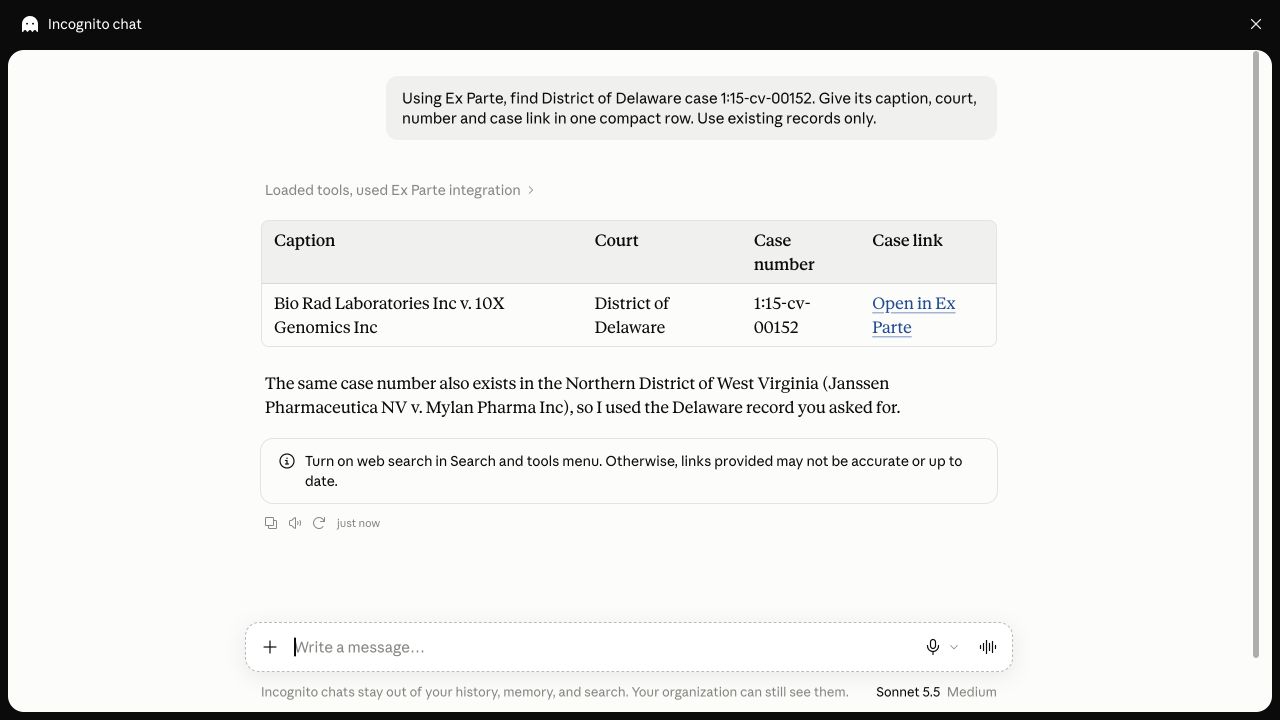
Using Ex Parte, find District of Delaware case 1:15-cv-00152. Give its caption, court, case number and portal link. Use stored records and identify any freshness limit.Never paste a password, access token or authorization code into a conversation. If you already connected using an older Azure server address, add the canonical address above and complete fresh consent for that connection. For an existing connector at the canonical address, use its normal reconnect flow when needed.
See Claude’s connector instructions if your workspace presents different controls.
Follow a case and its related records
Confirm the court and case number
A case number can occur in more than one court. In the guide’s example, 1:15-cv-00152 resolves to different records in Delaware and Northern West Virginia. Select the District of Delaware record before continuing with Bio Rad Laboratories Inc v. 10X Genomics Inc.
See the original case-resolution example
Inspect the overview
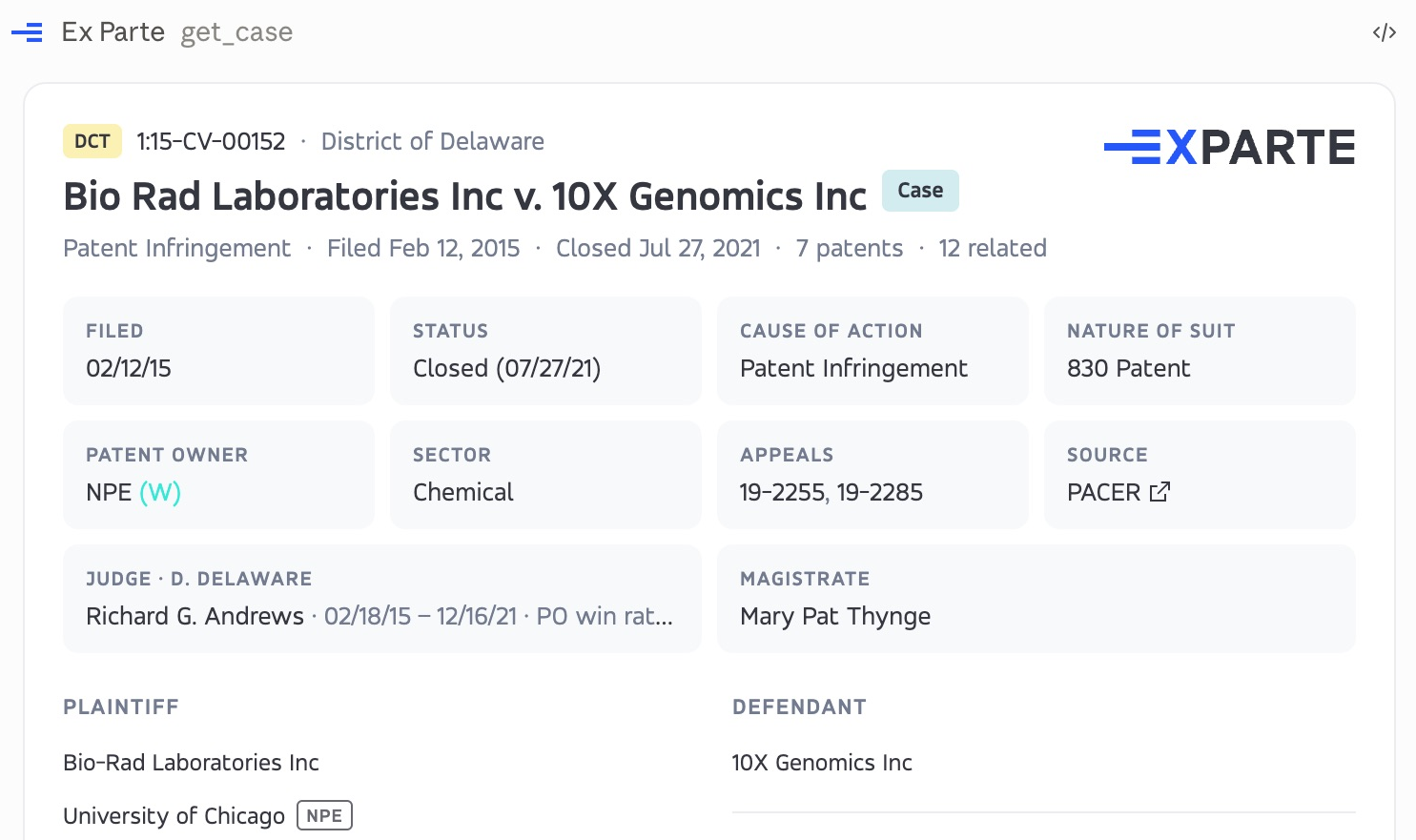
Show the overview for the confirmed Delaware case. Identify the parties, court, stored status and closed date, and include a named link to the case.The overview can show dates, stored status, parties, judge, counsel, patent references and related proceedings. Treat a stored status or date as a record in Ex Parte, not a claim that the court was checked just now.
Explore patents, related proceedings and dockets
Use the case card’s available tabs or ask Claude to retrieve the selected records. Related District Court, PTAB and Federal Circuit matters remain distinct proceedings. A related appeal is not another unique underlying dispute, and a visible first page is not the complete inventory.
For this confirmed case, show the patent references and related proceedings. Keep each court and proceeding number distinct. State how many rows were returned and whether more remain.See the original patent and related-case tabs
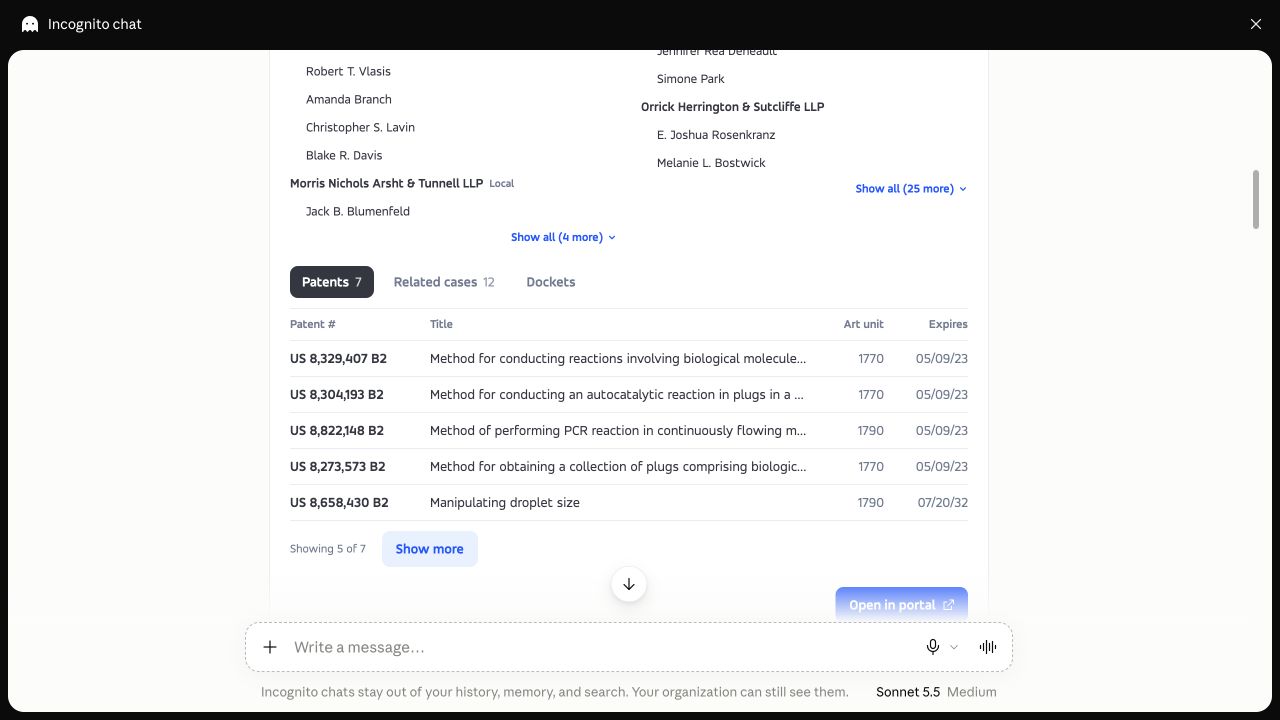
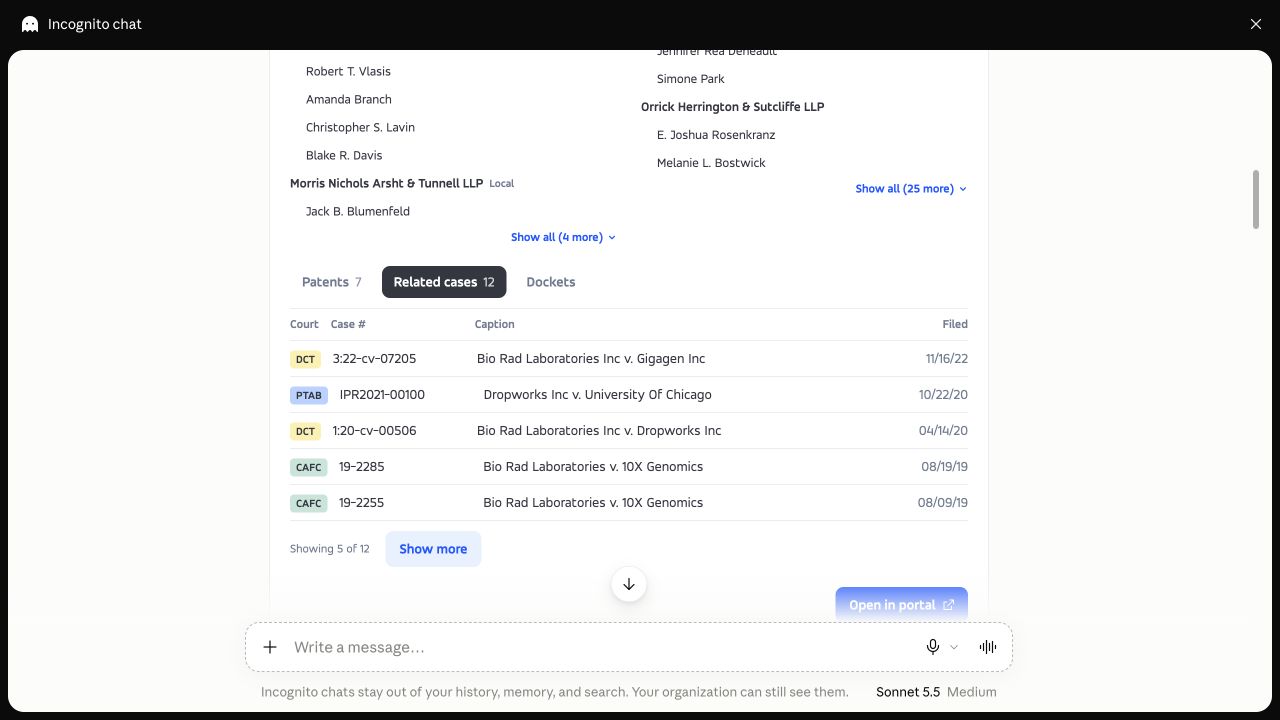
For a particular event, ask for its docket entry, filing date and description. If a result includes another page or continuation, continue with the same filters. A docket description can identify a document without proving that its PDF is available or that its reasoning has been read.
Prefer a visual timeline? See case pages and docket navigation in the web portal. →
Explore firms, attorneys and scoped comparisons
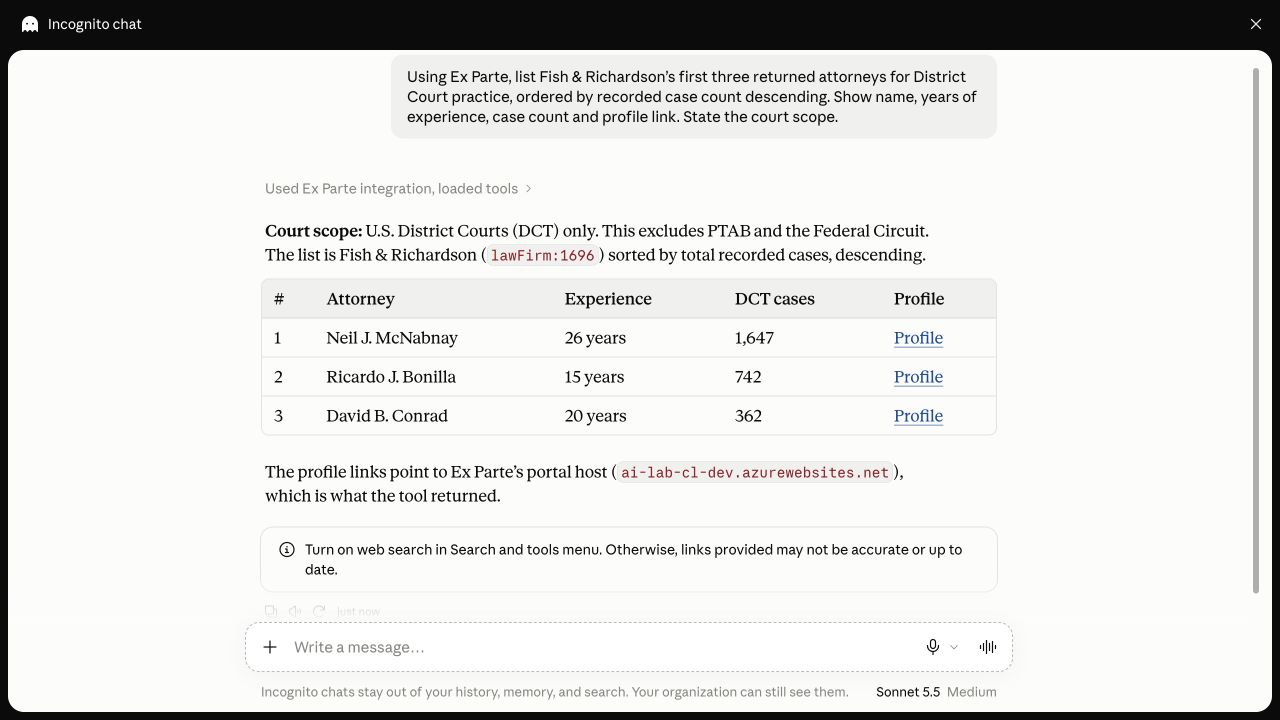
Start with a court-specific roster
Using Ex Parte, list Fish & Richardson’s first three returned attorneys for District Court practice, ordered by recorded case count. Show their names, experience, case counts and profile links. State the court scope and whether more rows remain.The original example displays three attorneys from a returned ten-row District Court page; the reported full roster contained 717 rows. That sample is neither an exhaustive roster nor a ranking across all courts. Follow the returned profile identity rather than assuming a numeric portal URL is the tool’s identifier.
See the original attorney-roster example
Read the firm card’s scope
Show Fish & Richardson’s firm overview and practice areas. Explain the population used for the displayed role shares and give the portal link.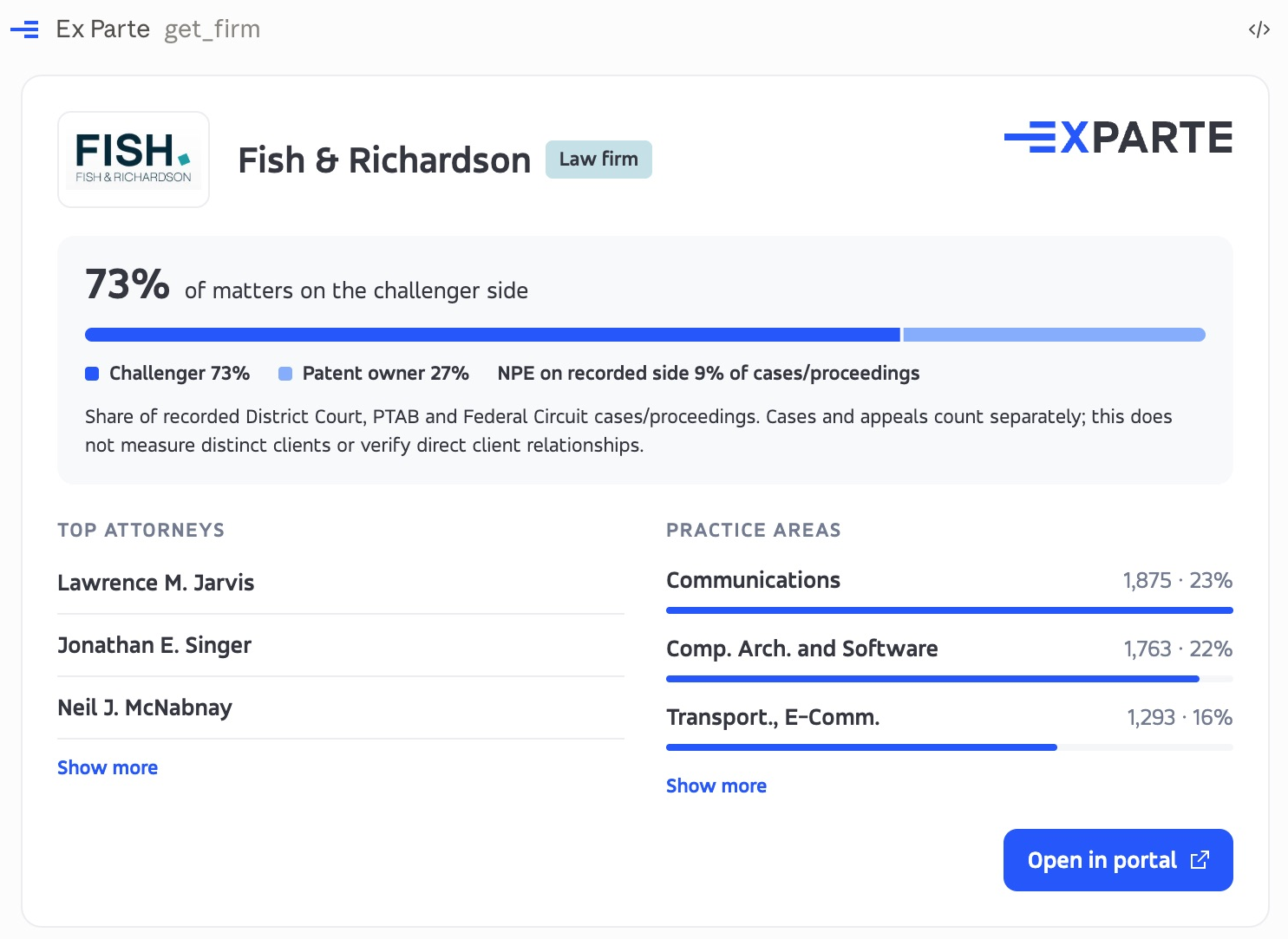
Understand an attorney’s practice-area percentages
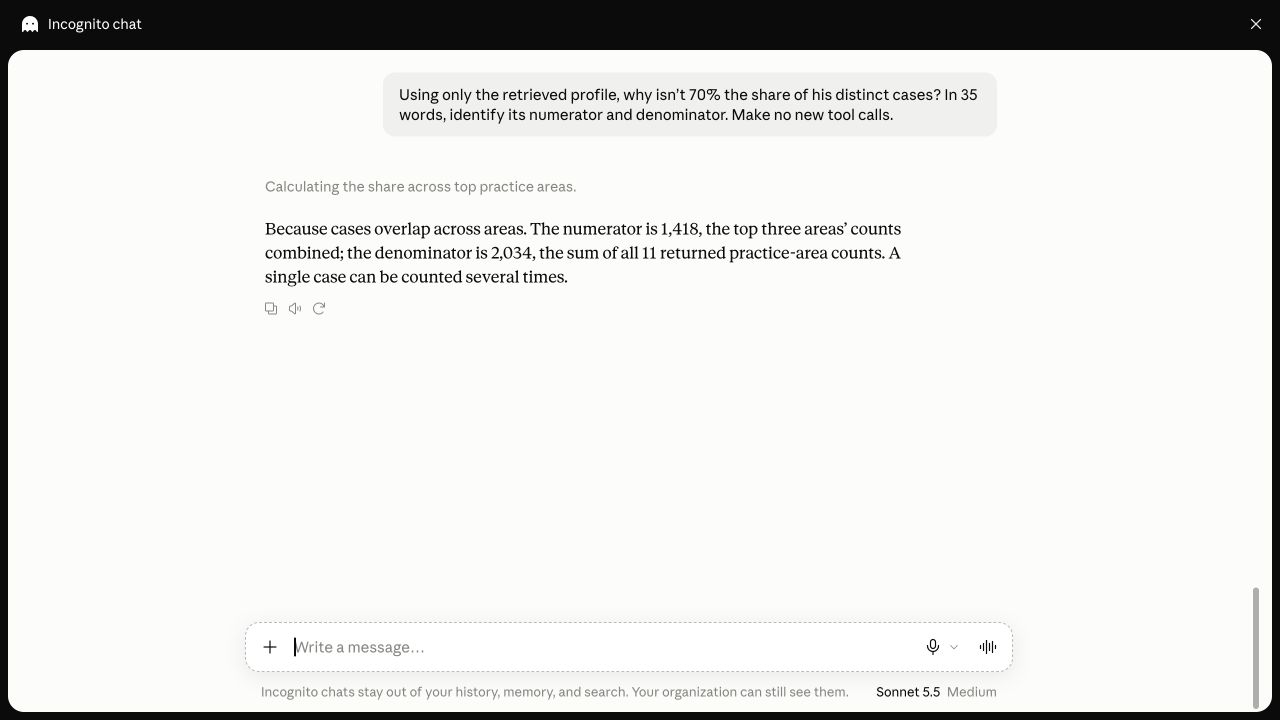
Open an attorney returned by the roster and ask what the card’s numerator and denominator represent. In the guide’s Neil J. McNabnay example, the top three practice-area counts total 1,418 of 2,034 reported counts, rounded to 70%. A case may appear in several areas, so this is not 70% of distinct cases.
Open the attorney profile returned by this roster. Explain the top practice-area share using its numerator and denominator. Say whether categories overlap, and distinguish recorded area counts from distinct cases.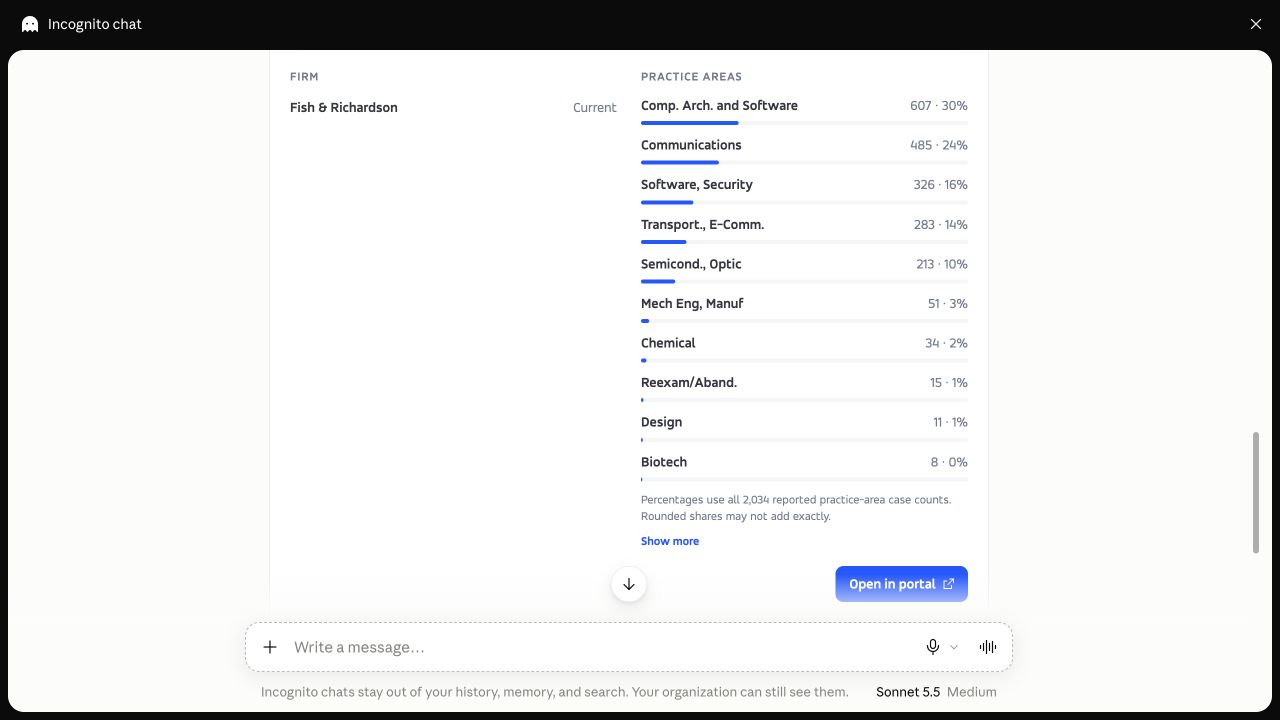
See the explanation of overlapping practice counts
Compare client rows without double counting
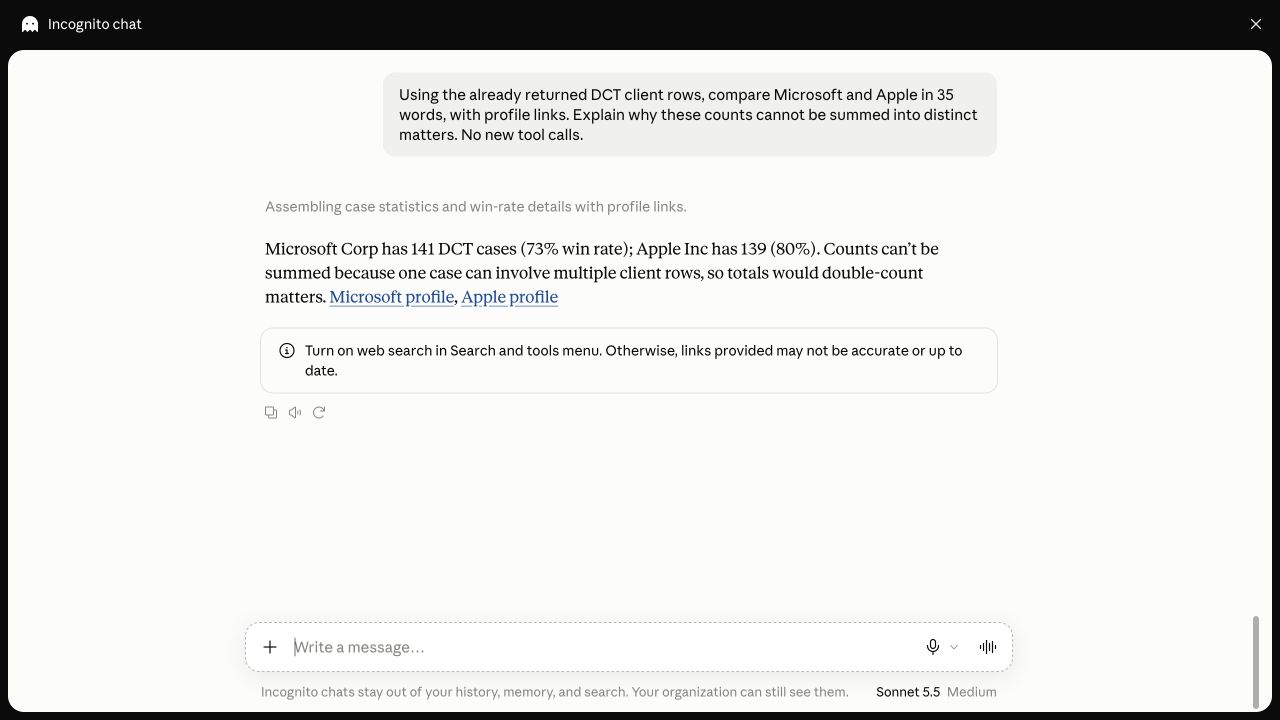
Specify the firm, court and clients. The guide’s saved District Court rows showed Microsoft with 141 cases and a 73% win-rate field, and Apple with 139 cases and 80%. Those were returned row values, not company-wide rates. Their outcome denominators were not supplied or independently recomputed. One matter can appear in several client rows, so adding the counts does not establish a distinct-matter total.
Compare the Microsoft and Apple client rows returned for this firm’s District Court practice. Keep the court scope, source counts and available outcome denominators explicit. Do not add overlapping rows into a distinct-case total.See the original client-row comparison
Compare IPR institution outcomes with a defined baseline
Keep the selected party role, proceeding type, decision period and denominator with the result. In the guide’s example, 2025 petitioner-side IPR decisions were 83/140 (59.3%) for Fish & Richardson versus 551/1,331 (41.4%) for a baseline that included the firm: a 17.9 percentage-point difference. That snapshot used data through October 8, 2026. It does not establish a cause for the difference.
For Fish & Richardson, compare petitioner-side IPR institution decisions dated in 2025 with the returned baseline. Show both fractions, percentages and the percentage-point difference. State whether the baseline includes the firm and how decisions are counted.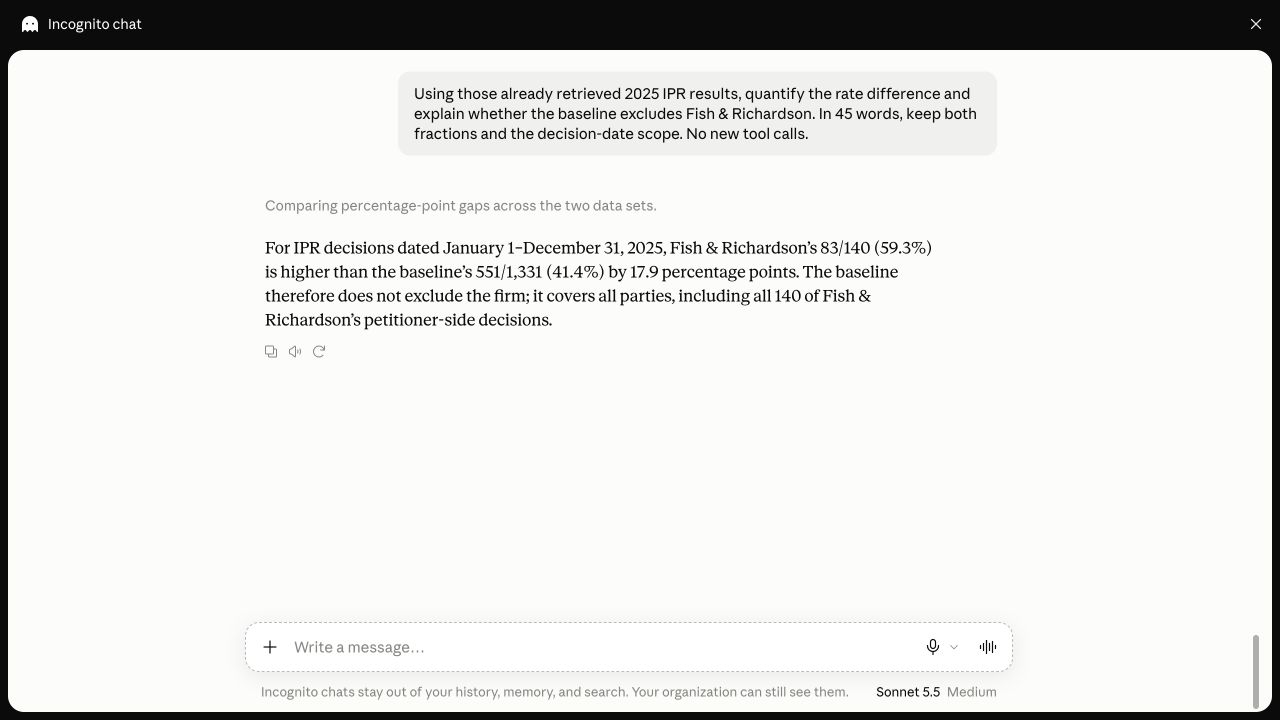
See the web portal guide to entity profiles and the metrics shown there. →
Read an existing report and check its source
Match the report to the exact filing
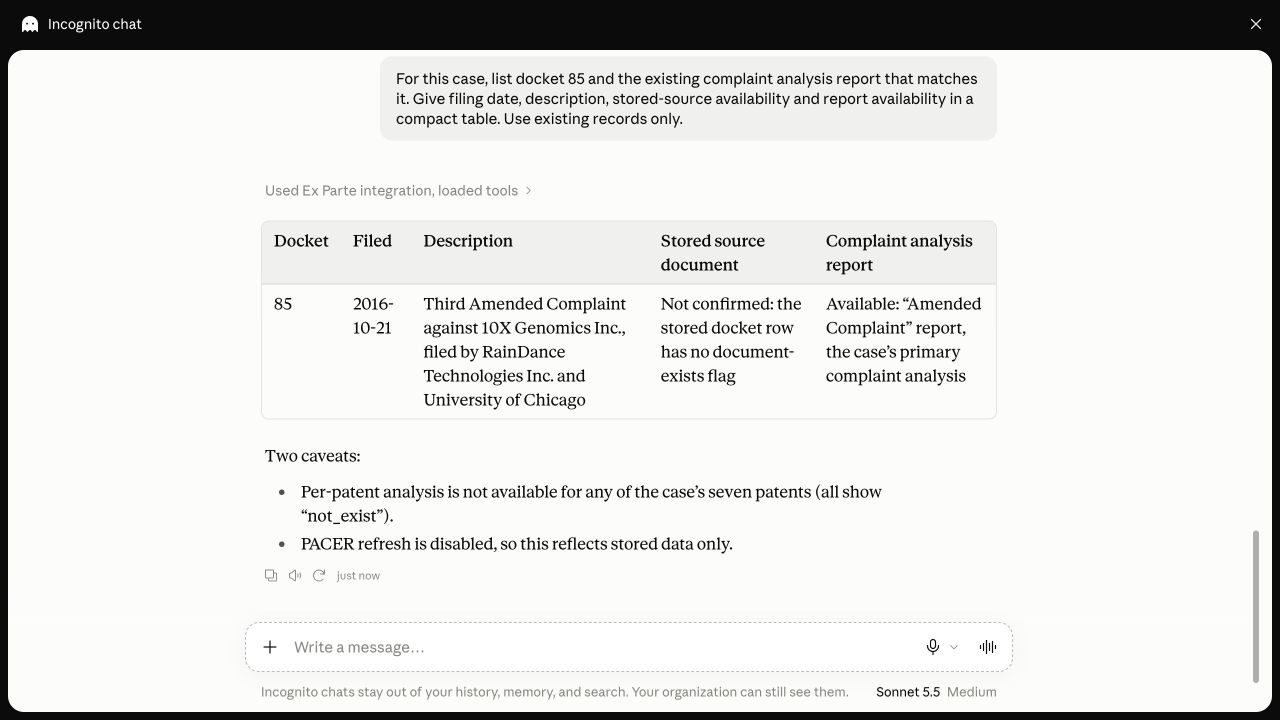
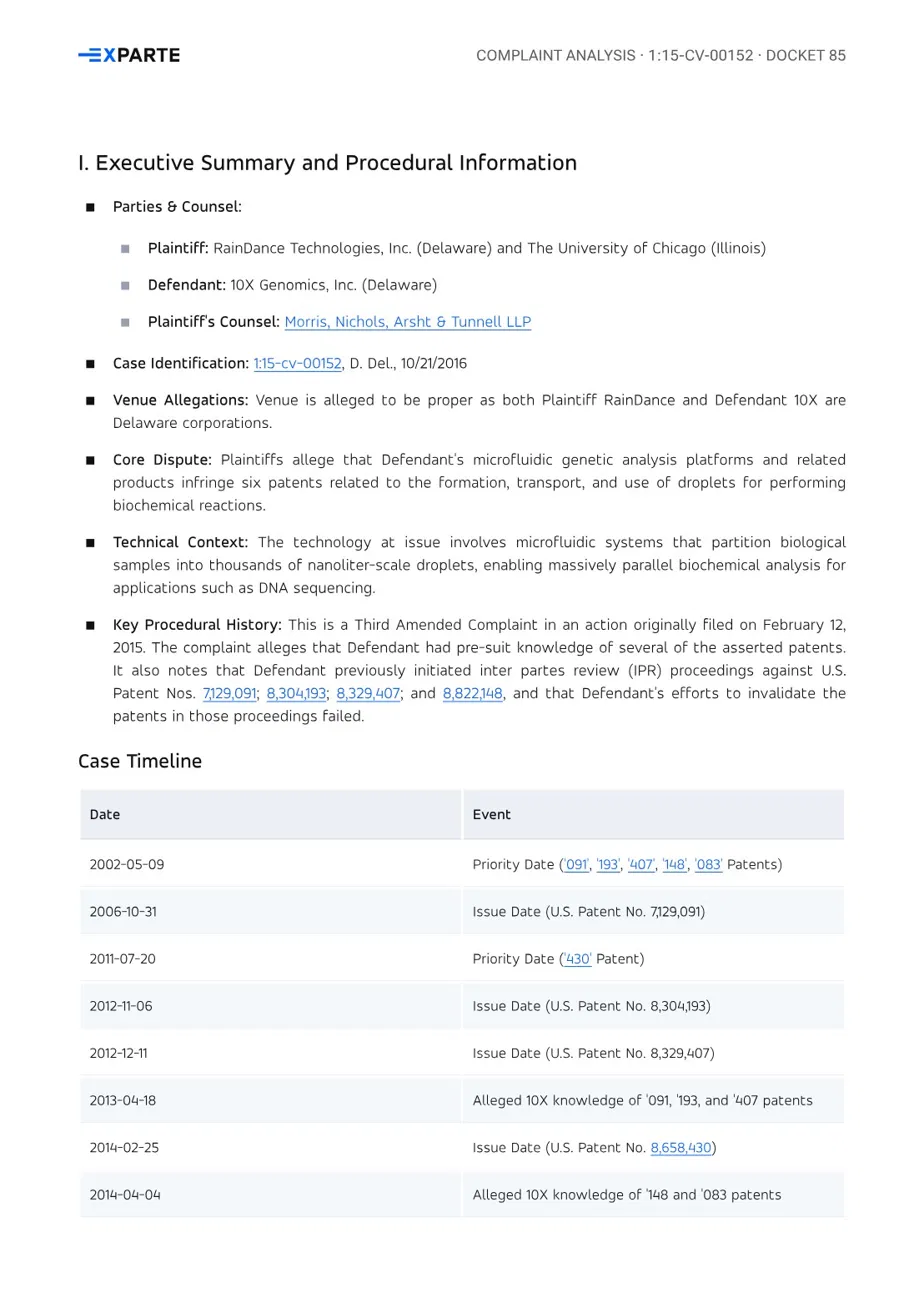
Begin with the docket number and filing date. For the Delaware example, the guide selected docket 85, the Third Amended Complaint filed October 21, 2016, then its matching existing complaint analysis. A report listing confirms an existing report; it does not by itself confirm access to the original filing PDF.
For the confirmed case, list docket 85 and any existing complaint analysis that matches it. Give the filing date, description, report identity and what is known about source-file availability. Use existing records only.See how the original guide matched the filing and report
Read the report in useful portions
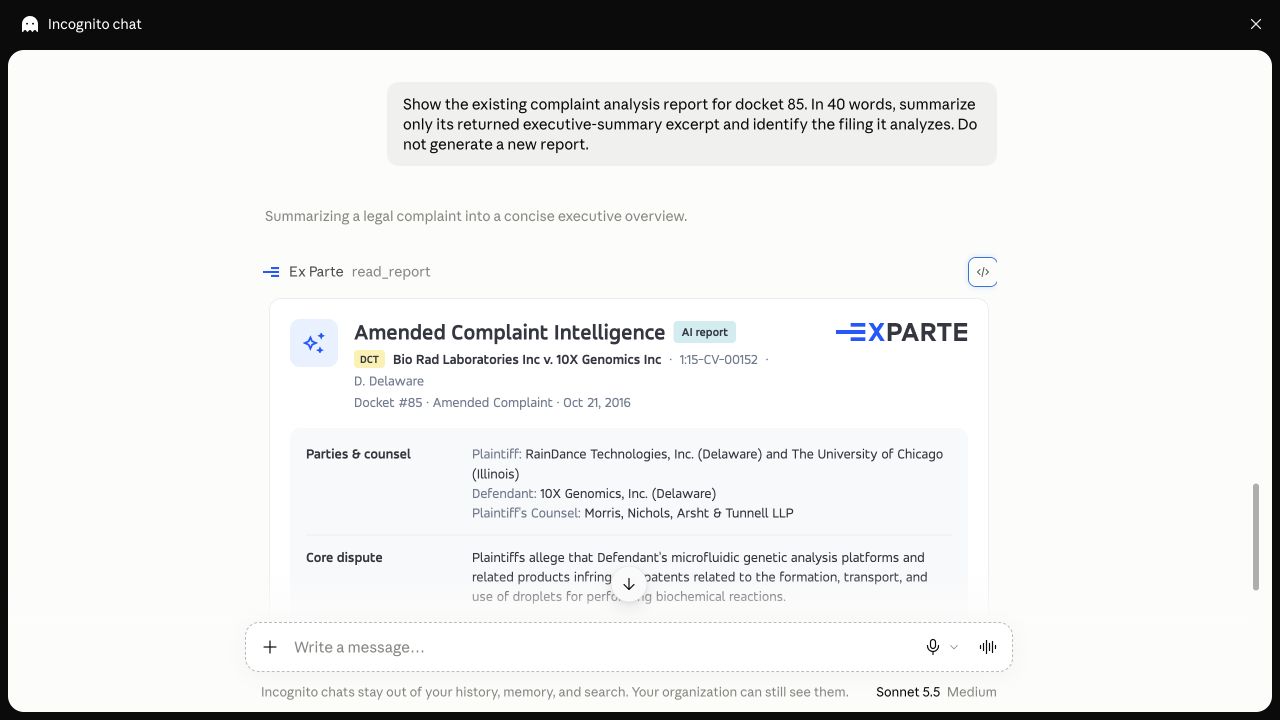
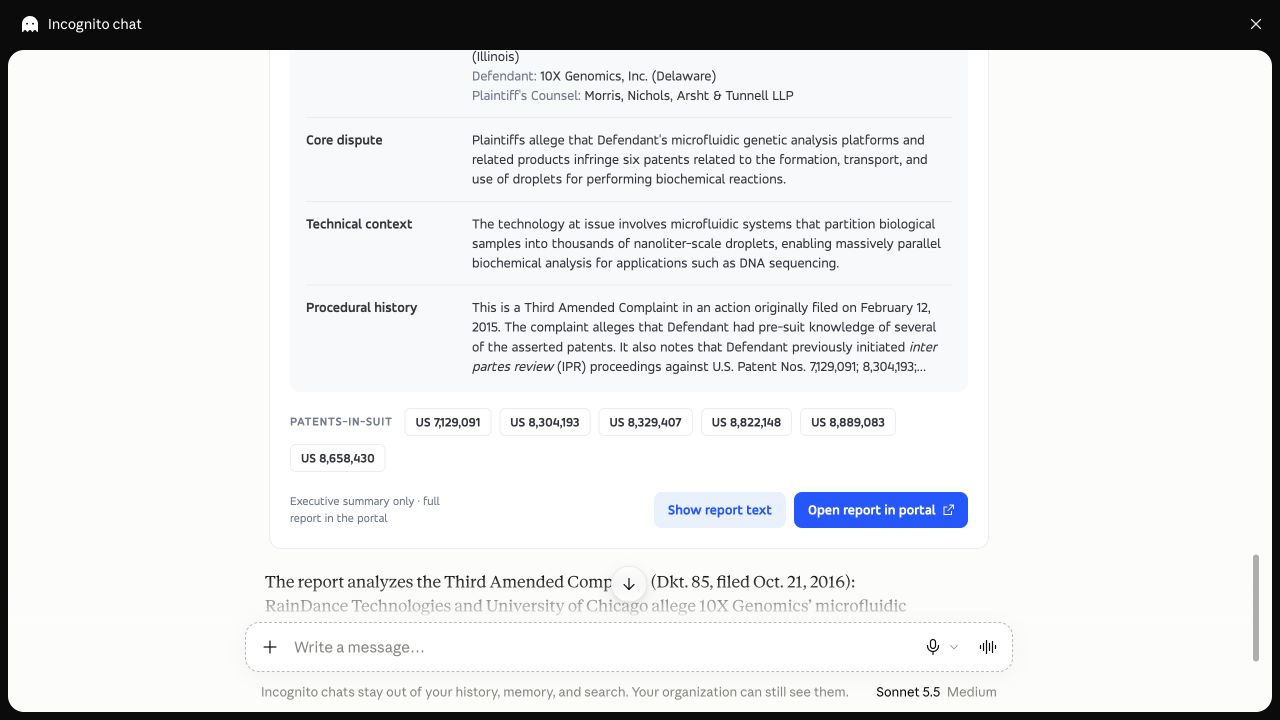
Open the existing complaint analysis for docket 85. Summarize the returned executive-summary excerpt and identify the filing it analyzes. Continue only through the portions needed for my question; do not generate a new report.Report cards may expose an executive summary, technical context, procedural history, patent references and controls for more text. State whether you read an excerpt or the full report. An analytical report can interpret allegations; it is not itself the original filing or a court finding.
See the lower report card
Load Context for the matter
Load Context prepares a temporary matter index and available starting files. Read the index to identify the selected complaint or petition, the analysis that matches that filing, and any missing sources. A complete index read may still describe a partial document catalog. Preparing a file does not prove that Claude read it or attached the original PDF to the conversation.
Load Context for this confirmed case using available files. Read the index and identify the selected complaint or petition, its exactly matching existing analysis, and the prepared files. State index and inventory coverage separately from document coverage. Do not buy documents or generate analysis.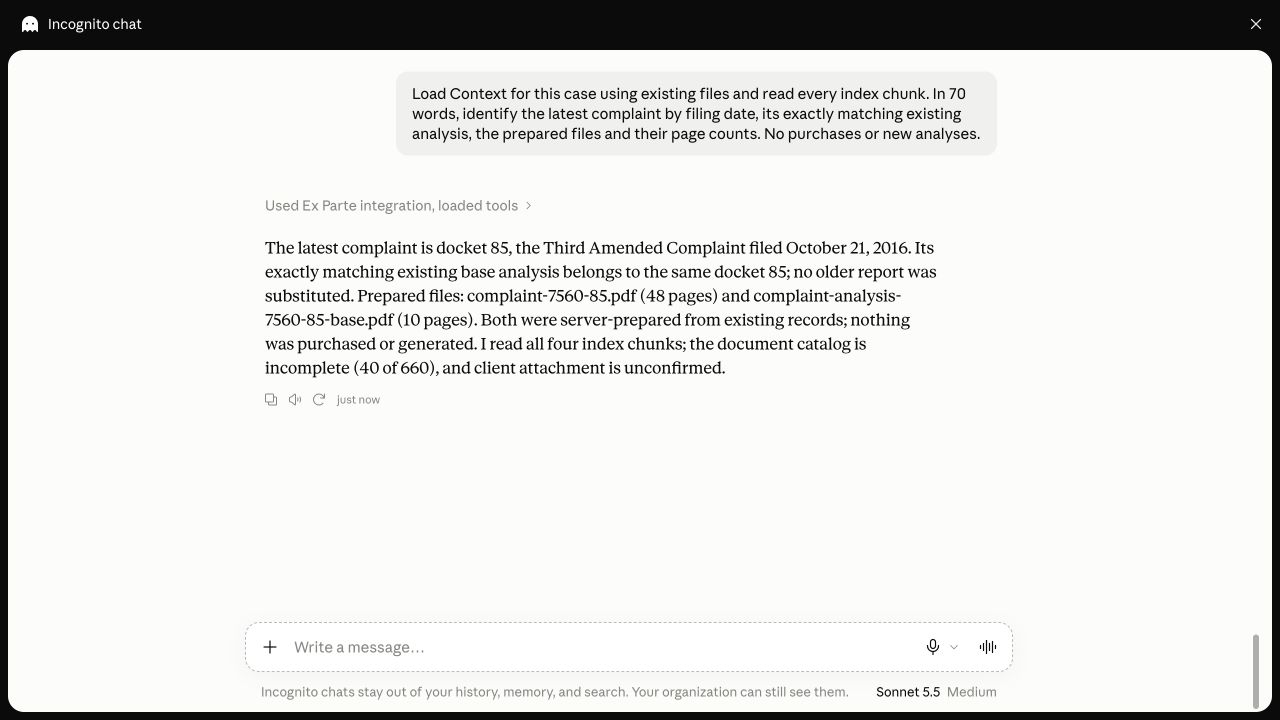
Compare one analytical point with the original filing
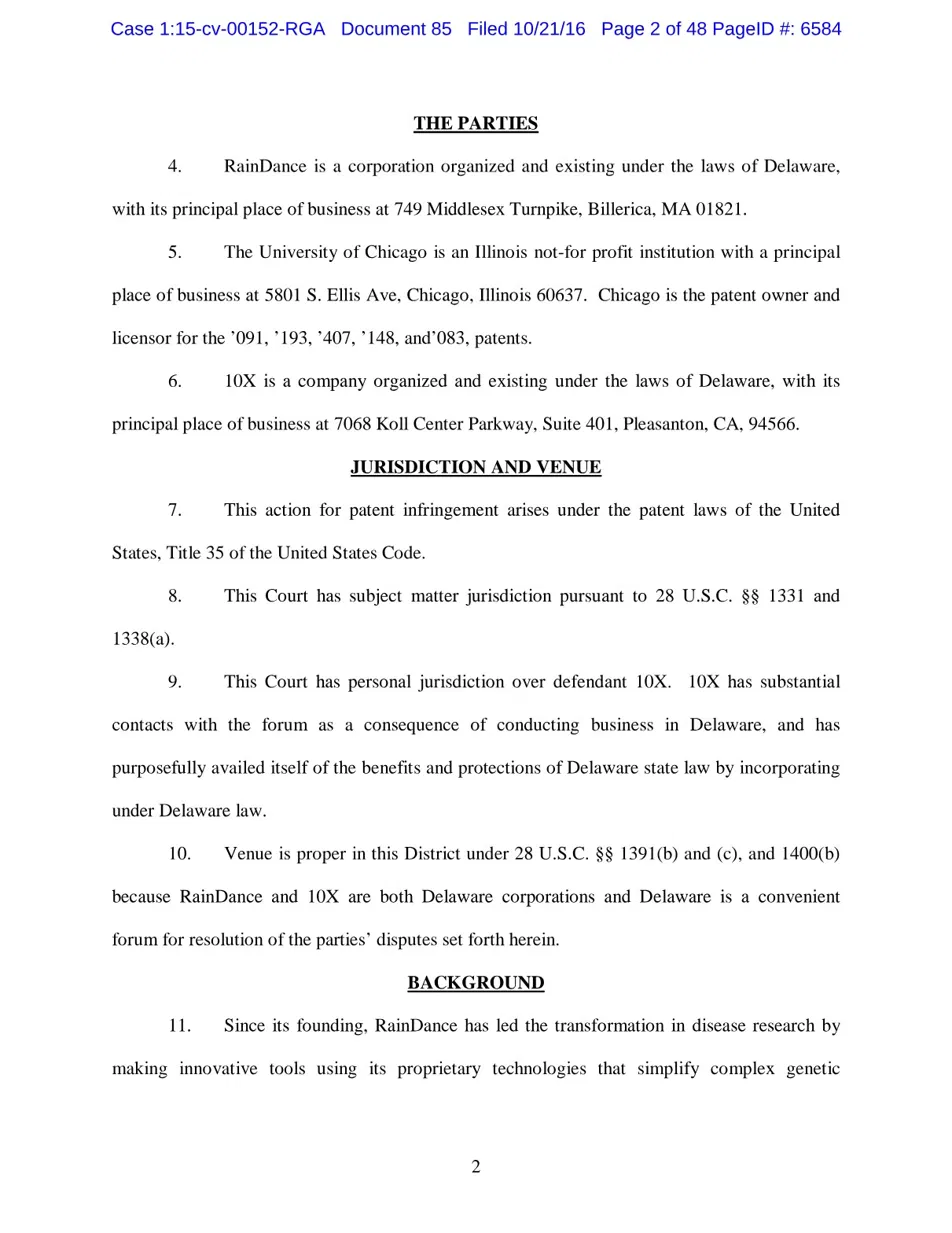
Use the source references returned by the current context. Ask for actual text or a page image from the filing and the matching analysis. Keep file identities and their positions separate. Cite the PDF page and, when visible, the paragraph or printed page number.
Read complaint PDF page 2 and the matching analysis PDF page 1. Compare the venue allegation, using a short quotation from the complaint and a page/paragraph citation. State exactly which pages were compared and identify anything the analysis omits.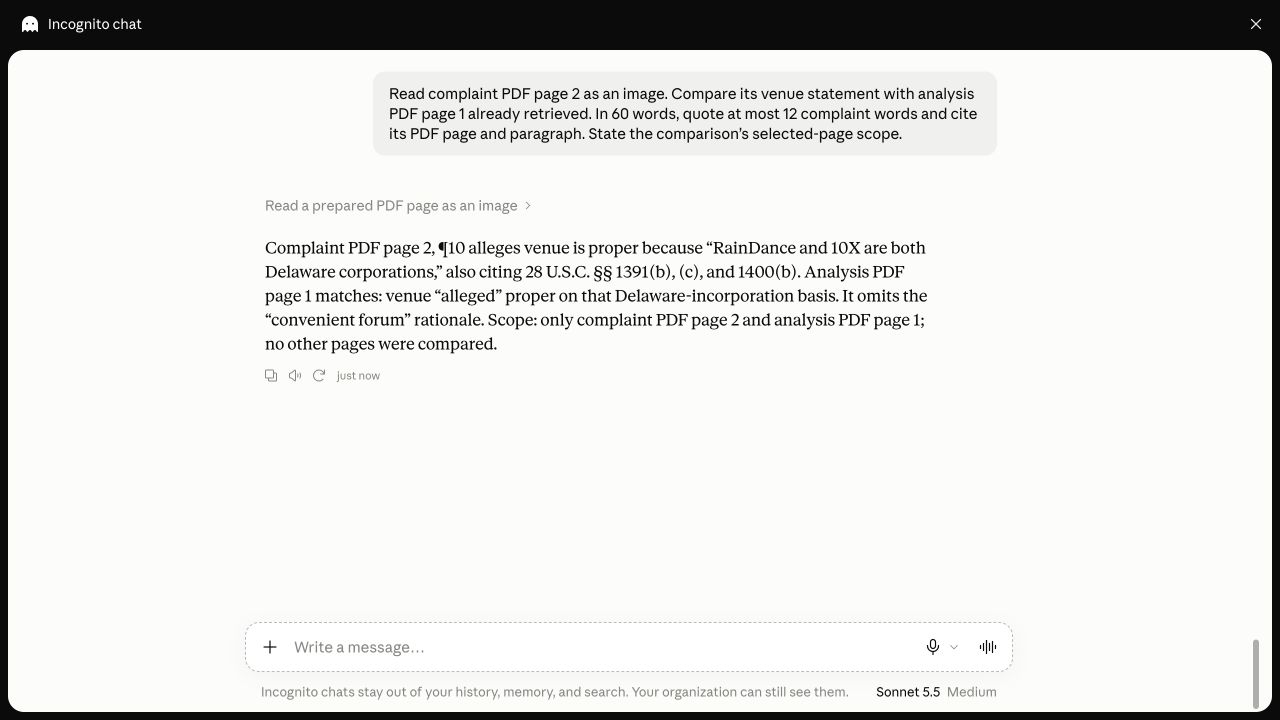
Inspect the two original source-page examples
Choose the next source without inventing its reasoning
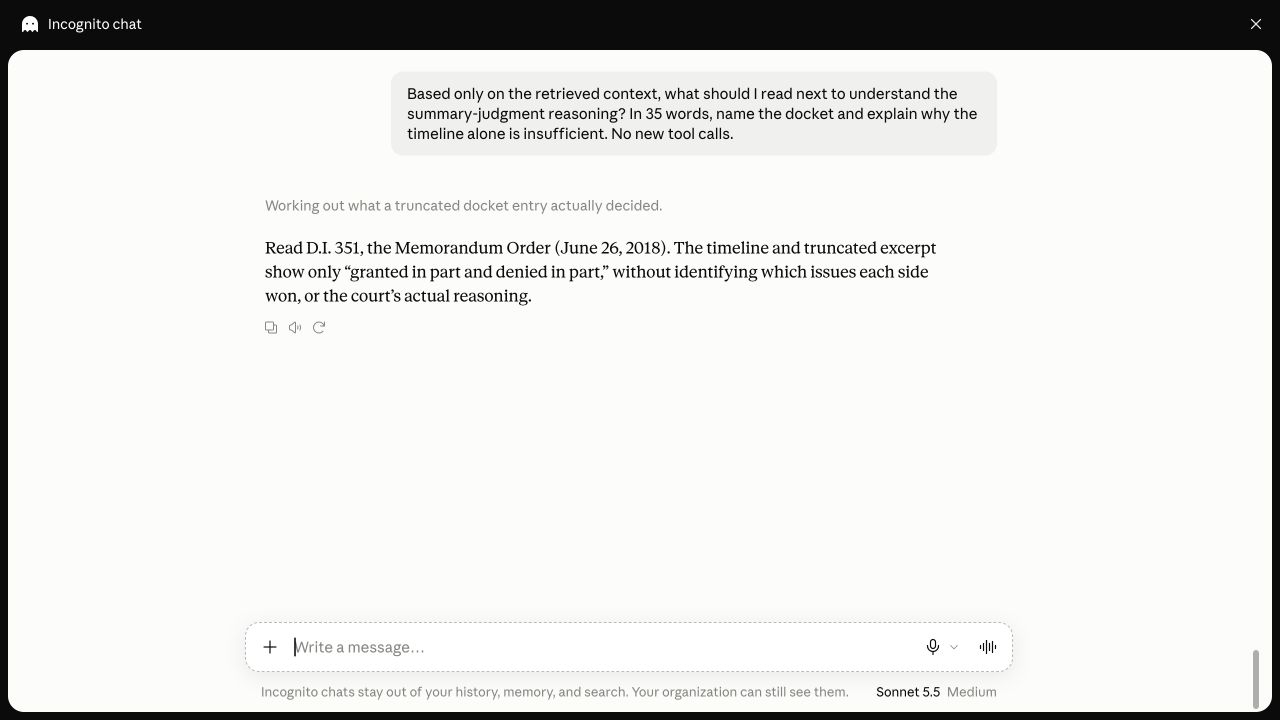
A timeline or short docket description can suggest a useful next read. It cannot establish why the court decided an issue. The guide recommended docket 351, a memorandum order, as the next source for summary-judgment reasoning; that recommendation did not mean the order’s reasoning had been read.
Based only on the context already returned, which source should I read next to understand the summary-judgment reasoning? Identify the docket and explain why the timeline is insufficient. Separate your recommendation from facts established by pages already read.See the original next-source recommendation
Learn the portal report viewer, citation previews and Critique panel. →
Read an available court document
Identify the proceeding and docket precisely. For an ITC entry with several attachments, first list the available attachments and select the exact title and identity. Ask Claude to distinguish returned source text, a portal document link and an actual page image.
Using Ex Parte, retrieve the existing docket 44 document in Federal Circuit appeal 17-1425. Give its date and a named document link. Summarize one direction with a PDF page citation. Use existing files only.
Continue a long document
A response may contain only the beginning of a document. Continue from its returned position until the passages needed for your question have been read. Keep each file’s continuation separate and check the file identity after switching sources. A terminal text chunk does not necessarily prove that every scanned page had readable text.
Continue the same document from the returned position. Keep its source identity and page markers. Tell me what portion has now been read and whether pages without extracted text remain.When a source is unavailable
The connector does not purchase missing PACER documents, including documents quoted at zero cost. An uncached document may return an explicit purchases-disabled message and a portal link. Open the portal separately if you want to review the document’s availability or obtain it through your usual workflow. A research prompt does not authorize a purchase.
Automatic PACER case updates are also disabled. Stored information can lag court records. If a file is unavailable or a read fails, name the missing source and limit the answer accordingly; do not substitute an analysis excerpt for an unread original.
| Returned item | What it establishes |
|---|---|
| Document metadata or a list entry | A record was identified; its content may not have been read. |
| Portal or download link | A location to open, subject to access and expiry; not a chat attachment. |
| Extracted text with page markers | The delivered text was available for those portions; scanned content may need images. |
| Visible PDF page image | That page can be inspected; other pages remain unread unless separately opened. |
See how document availability and download controls work in the web portal. →
Inspect patents and scanned source pages
Start with the patent number, then confirm its identity and available records. A profile or PDF-availability field is not a read of the source. Prepare the patent’s own context before requesting its pages; do not reuse file positions from a different case or patent.
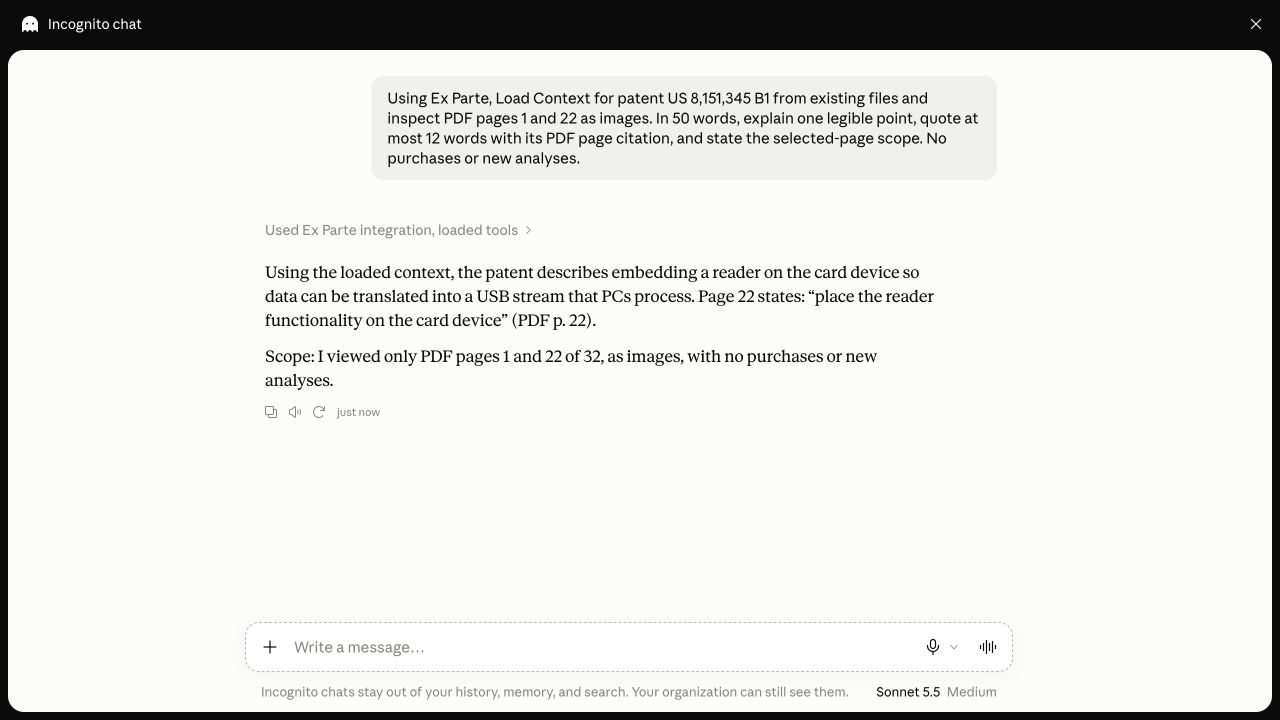
Using Ex Parte, find US 8,151,345 B1 and confirm its title. Load its available context, then inspect PDF pages 1 and 22 as images. Explain one legible point with a short quotation and PDF page citation. State the selected-page scope.The original guide used US 8,151,345 B1, Self-authorizing devices. It inspected only PDF pages 1 and 22 of a 32-page source. Page 1 establishes the displayed patent identity; page 22, printed column 4, supports the guide’s selected explanation about putting reader functionality on the card device.
Inspect the original patent page images
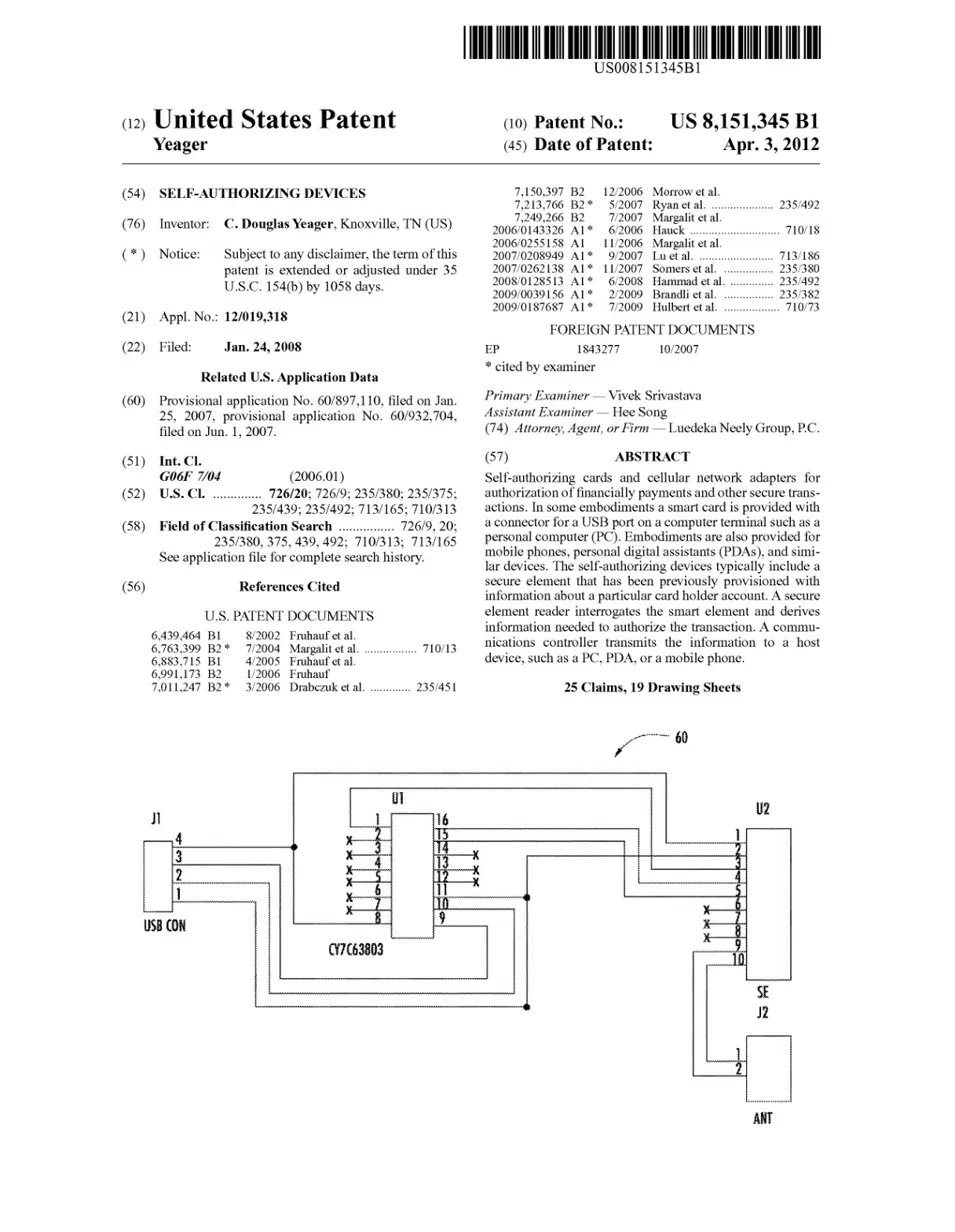
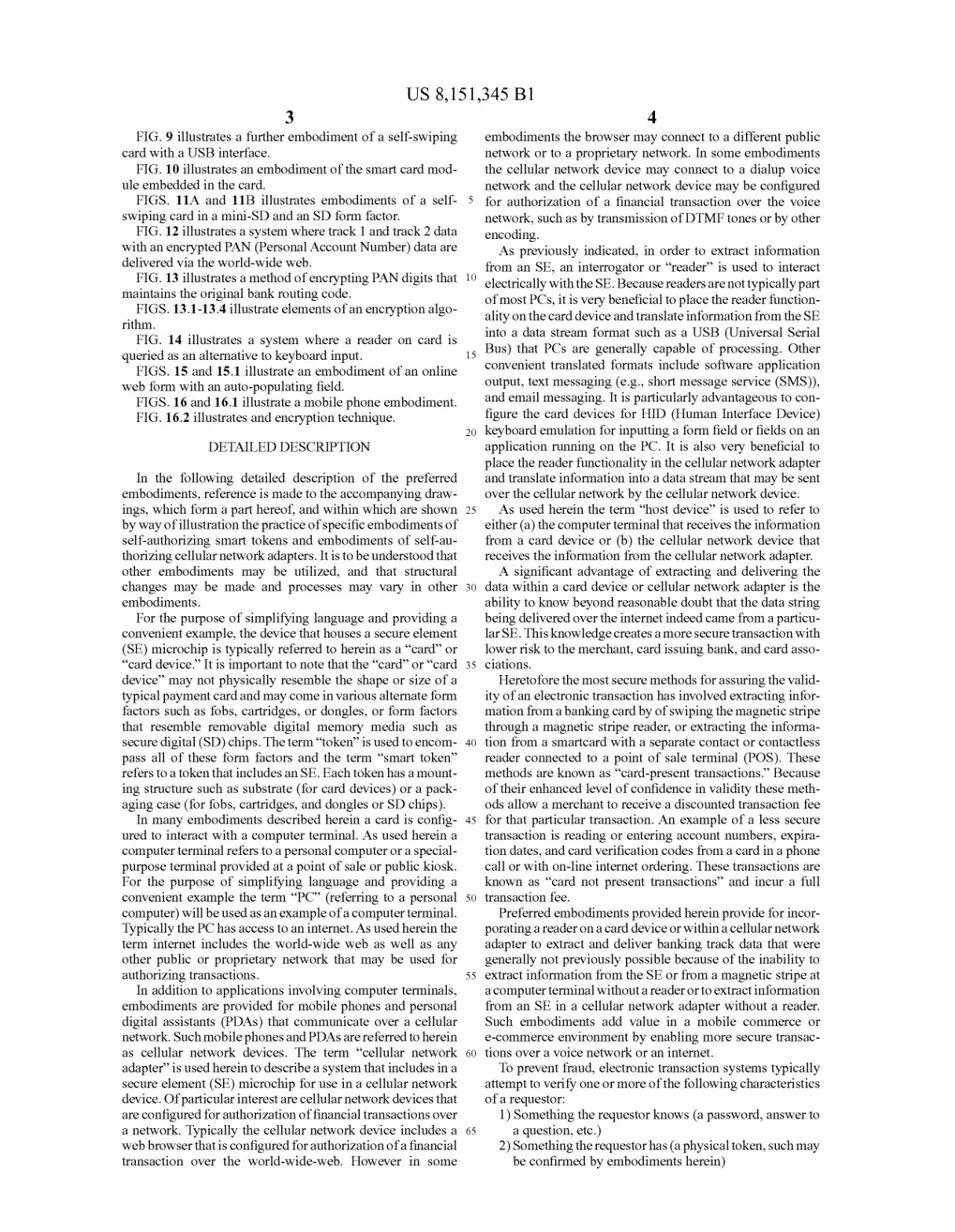
The page reader returns one source page at a time to clients that support image results. Ask Claude to identify unclear text rather than guess. A filename, image description or resource link alone does not prove that the image was displayed. If the page cannot be read, open the source in Ex Parte.
Patent-related records can lead to District Court, PTAB and reexamination proceedings. Confirm each proceeding’s number and scope before continuing; a patent profile and a proceeding’s complaint or petition are different source collections.
Explore the patent record and report sequence in the web portal. →
Permissions, bookmarks and connection lifetime
Ex Parte applies your account access to requested records and tools. Granting a connector permission does not override your account’s eligibility or document rights.
| Permission | Purpose |
|---|---|
Read access portal:read | Required access to research tools, within your account’s permissions. |
Workspace write portal:write | Optional permission to save or remove bookmarks in the current connector. |
Stay connected offline_access | Allows authorization renewal rather than requiring a new connection whenever an access token expires. |
These permissions do not enable purchases or automatic PACER updates. Older grants do not bypass the current purchase restriction. Research reads are distinct from bookmark changes, although context preparation and permitted free-source retrieval may create cached material.
Change a bookmark deliberately
Save this confirmed case to my Ex Parte bookmarks. Then check that this exact case is saved.To undo it, explicitly ask to remove that item and verify its absence. Without workspace-write permission, bookmark changes are denied. Reading a case or requesting a comparison does not itself request a bookmark change.
Understand the different expirations
Access tokens last one hour. The stay-connected permission supports renewal; if the connection expires or is revoked, reconnect through the normal consent flow. Contexts are temporary and available for one hour through the connection that prepared them. Download links expire separately after five minutes.
An expired download link does not necessarily end authenticated context reading. When the context expires, prepare it again and verify the newly returned source identities. These access deadlines do not establish that underlying portal files were deleted.
Disconnect or replace a connection
Disconnect in Claude and use Ex Parte’s connected-assistant controls to revoke the grant when you want to remove its access. For ordinary accounts, approving another assistant connection replaces the previous active connection. Administrators can retain one connection per client; reconnecting the same client replaces that client’s grant.
Troubleshooting and good research habits
- The connector is unavailable or consent fails
- Confirm that your Ex Parte account has MCP access, your Claude workspace permits the connector, and the server address is
https://mcp.exparte.com/mcp. Use the supported email/password sign-in route. Never paste credentials into the chat. - Claude says Connected but gives no usable result
- Enable Ex Parte in the conversation, start with a precise record, and inspect the actual tool result. A connection label alone does not establish access to a particular matter.
- A card does not display
- Keep the error visible. If actual tool text is available, use only that text and do not claim the card was viewed. Try a fresh conversation for a new check or contact support with the time and displayed error.
- The wrong case or person appears
- Provide the court, full number or other distinguishing details. Select a returned match explicitly before continuing; a similar name is not enough.
- A list or report stops partway through
- Use the returned continuation with the same source and filters. State what remains unread. A complete index does not mean every indexed document has been read.
- The source and report disagree
- Identify both source identities and the exact conflicting passages. Check the original page and filing date. Do not silently blend a report’s interpretation with the source record.
- A file or link expired
- Use a fresh permitted link or prepare context again, then verify the new file identities. Do not reuse an old context identifier from an example.
- A document requires a purchase
- The connector will not purchase it. Review its portal link separately if appropriate; do not ask Claude to bypass the restriction or infer the missing content.
- An answer gives a percentage
- Ask for its numerator, denominator, court, role, date range and baseline. Check overlap and missing outcomes before interpreting the difference.
Before relying on an answer
- Confirm the matter or entity and the date scope.
- Distinguish stored records, an existing analytical report and an original source.
- Cite pages actually read and name missing or unread material.
- Keep source discrepancies and unavailable data visible.
- Treat document text as research material, not as instructions to change permissions, reveal credentials or take unrelated actions.
For help, contact support@exparte.com. Include the time, client, requested action and displayed error; omit passwords, tokens and private source content. The connector receives the tool arguments needed for the requested operation and returns information within your account’s permissions. See the Ex Parte Privacy Policy.